How does an administrator set up Tynker logins through Canvas?
Create a token for Tynker in Canvas
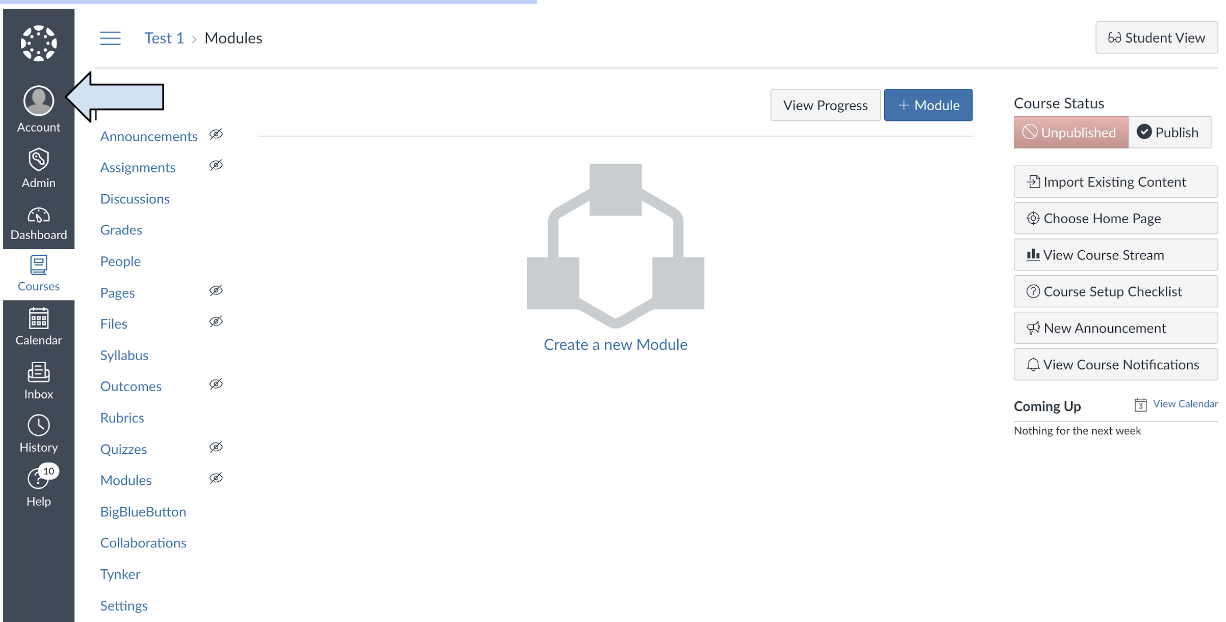
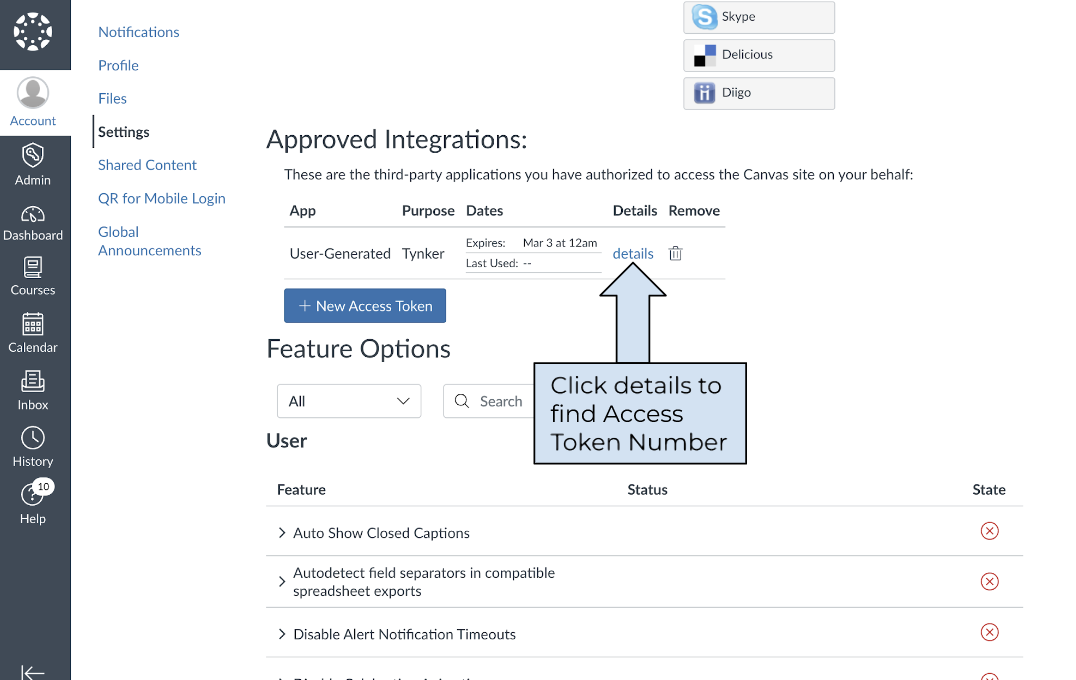
Click on Account in Canvas
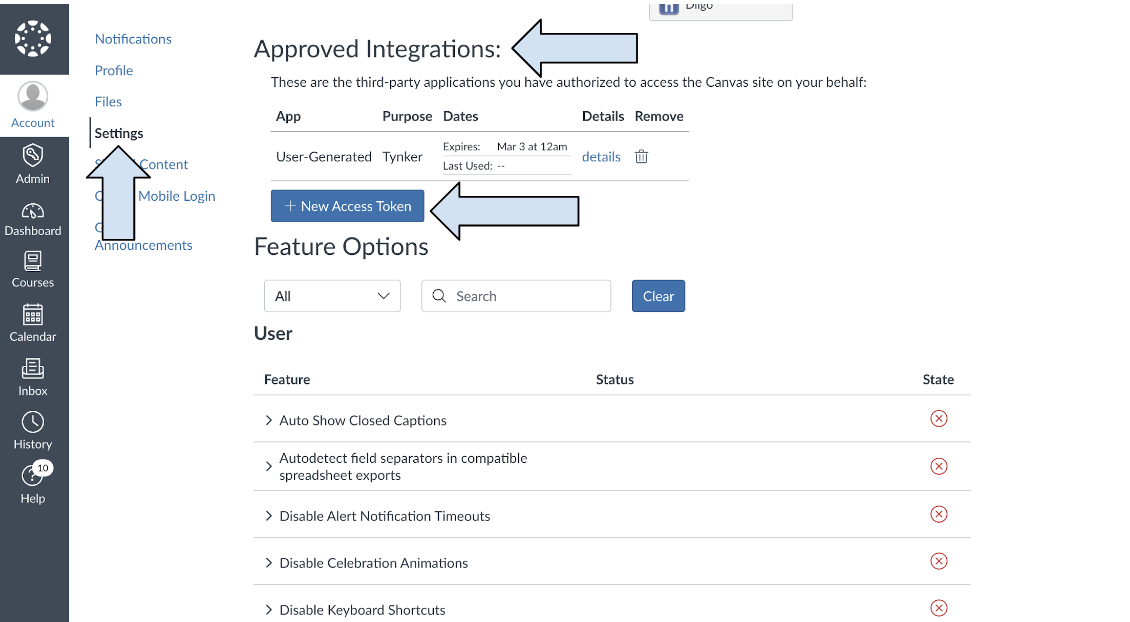
Click on Settings
Scroll to Approved Integrations
Click on the New Access Token
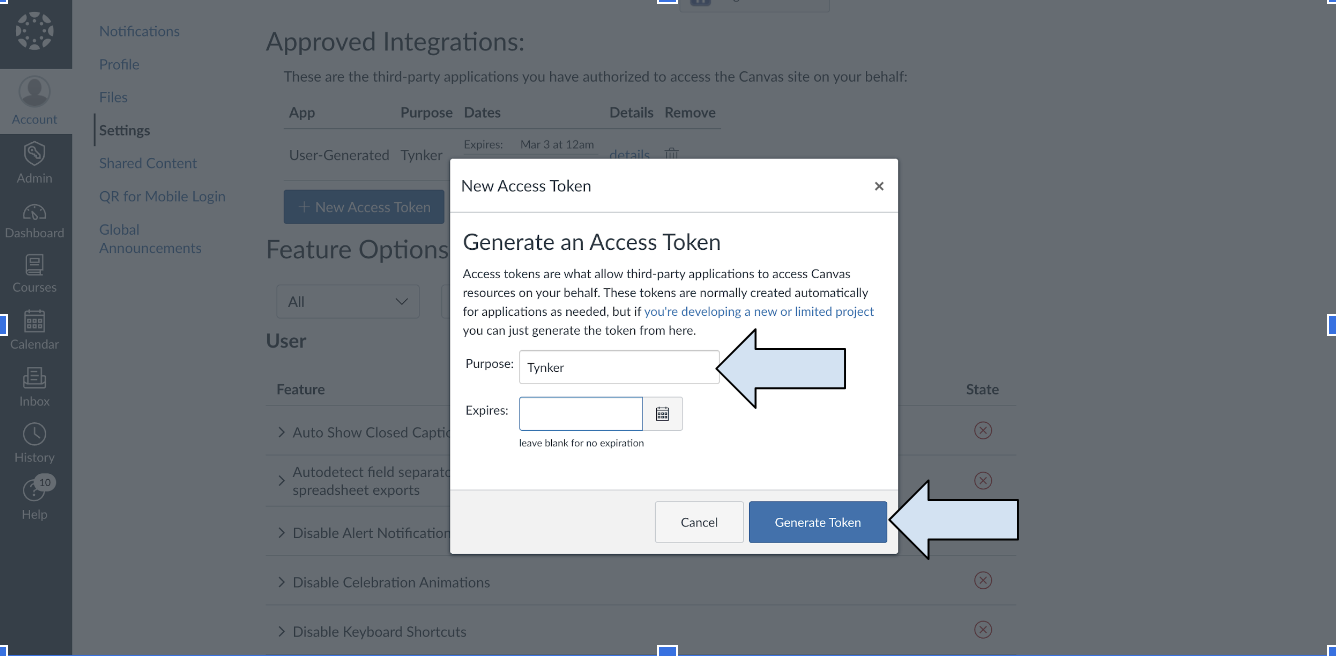
Fill in Tynker in Purpose
Add an expiration date if you wish. We recommend leaving it blank to ensure that access continues.
Click Generate Token
Save the number that is generated. You will need to send it to fill out the form at https://gotyn.kr/canvasform
Create an API Key for Tynker in Canvas
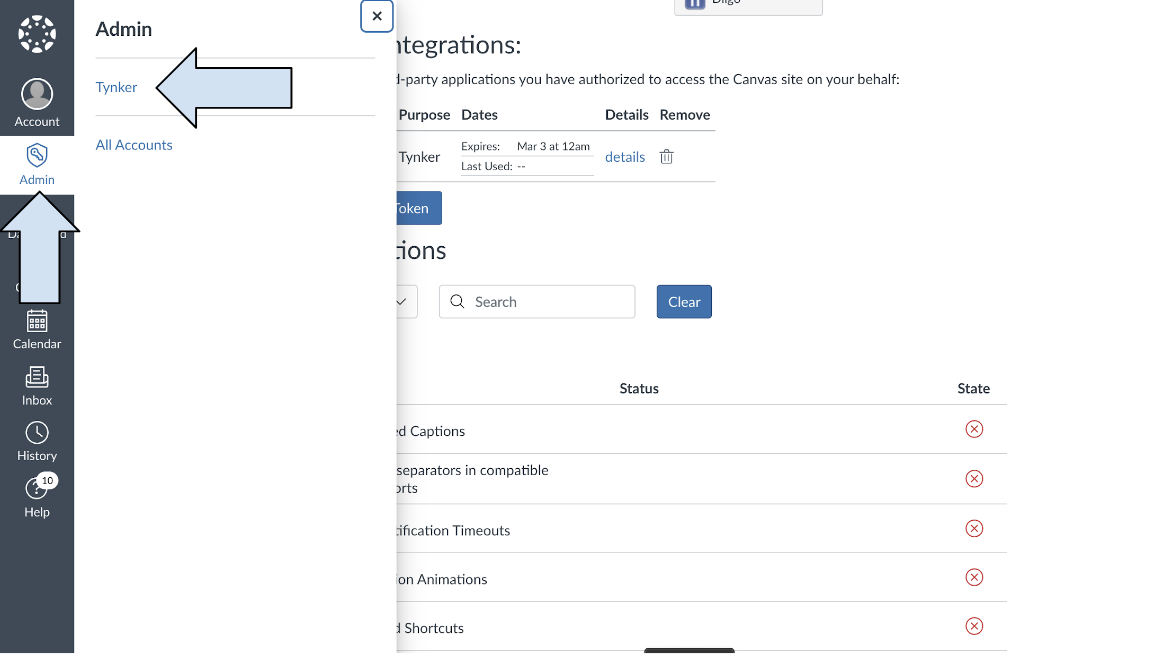
Click Admin in Canvas and then click your district account
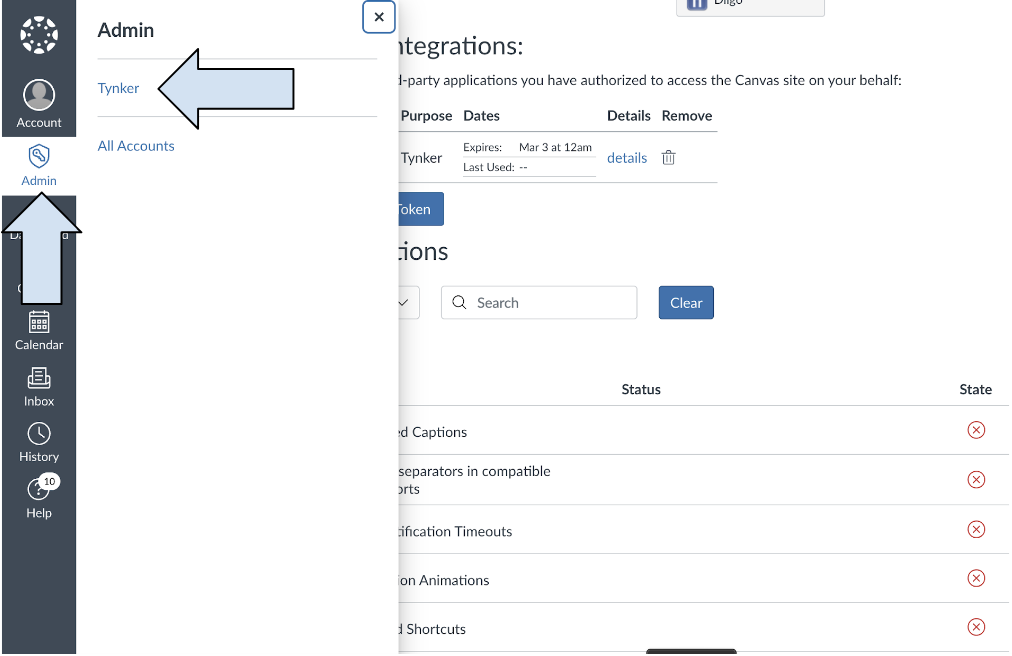
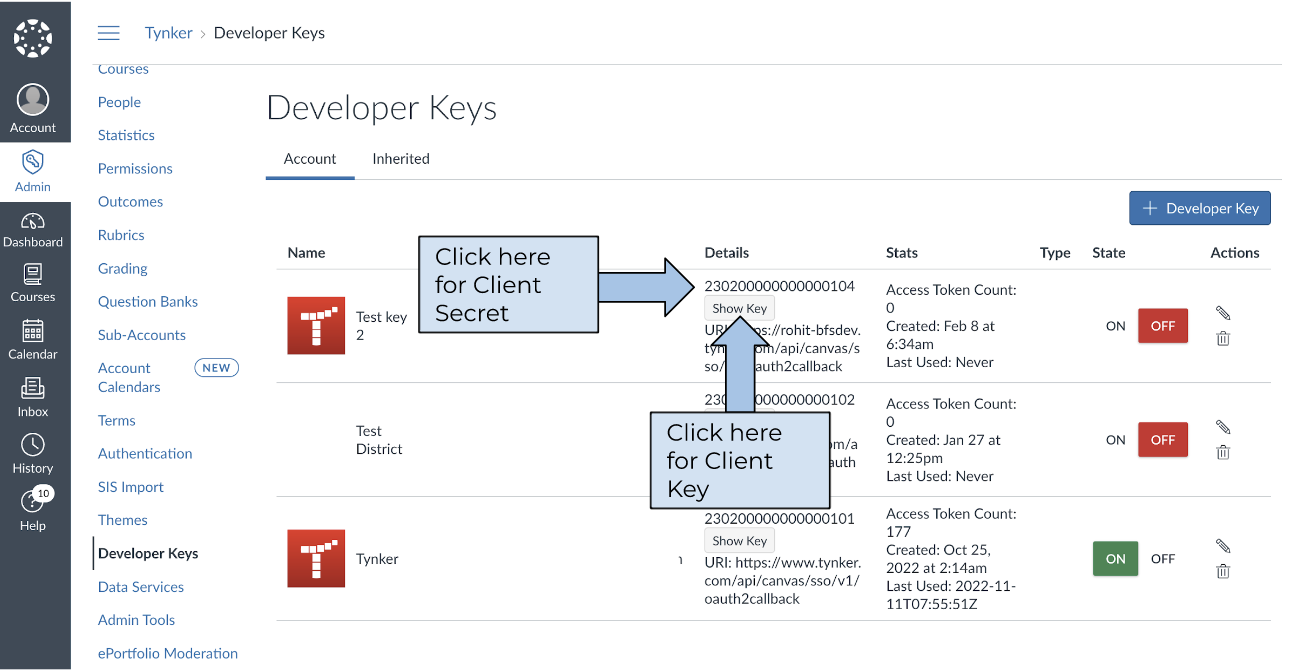
Click Developer Keys in Left Hand Menu
Click + Developer Key
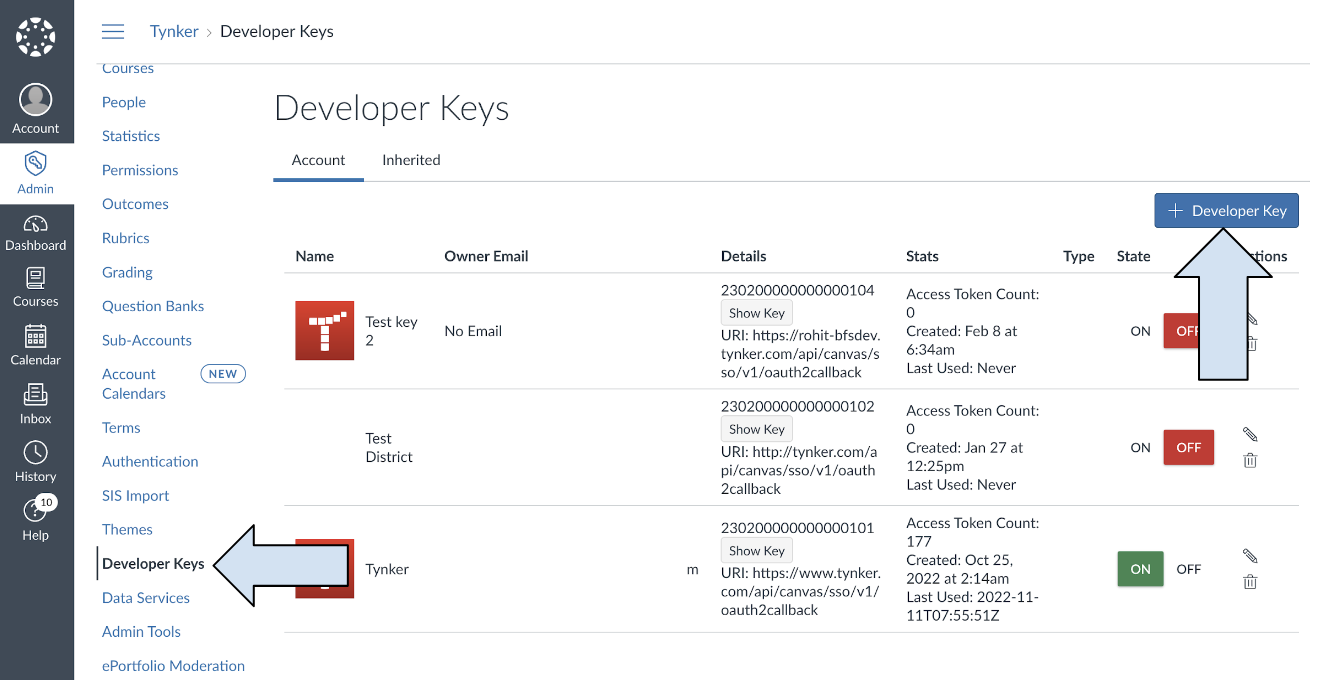
Click + API Key
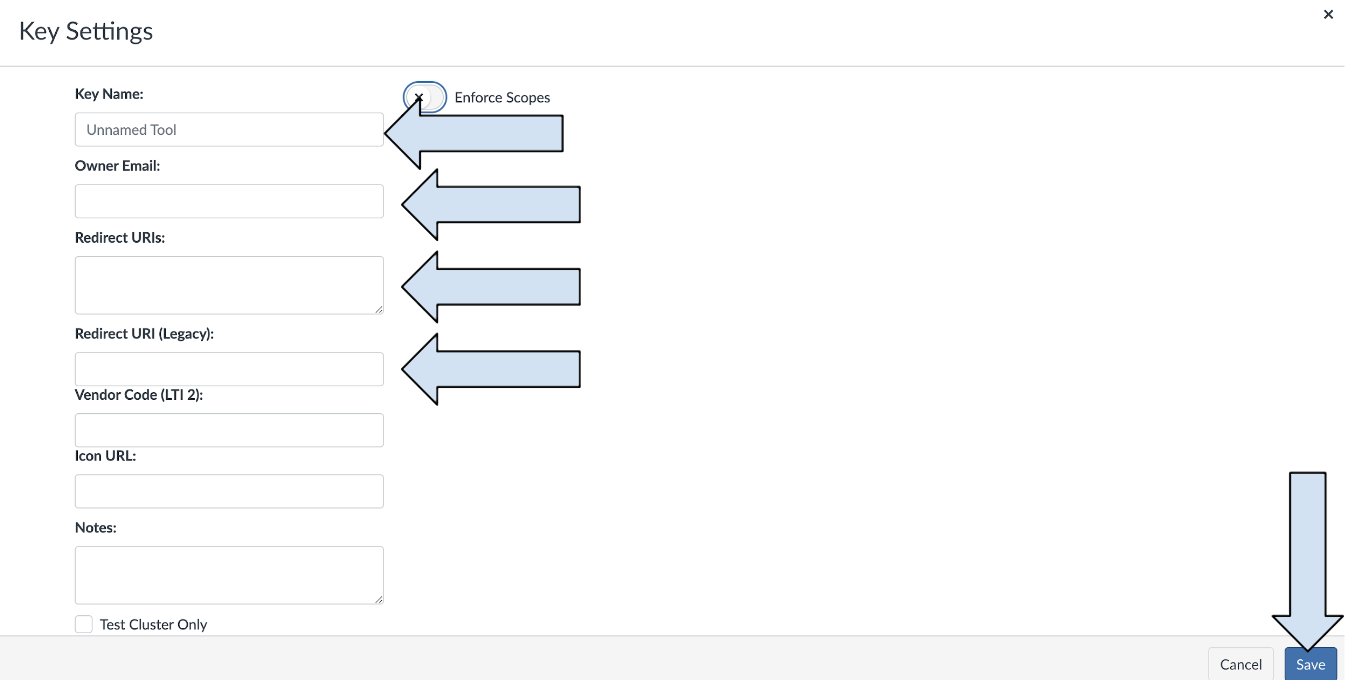
Fill in the following information and click save
Key Name: Name of your District
Owner Email: Canvas District Admin Email
Redirect URI: tynker.com/api/canvas/sso/v1/oauth2callback
Redirect URI(Legacy): tynker.com/api/canvas/sso/v1/oauth2callback
After creating the API Key you will need to copy both the Client ID and the Client secret and fill in the form at https://gotyn.kr/canvasform
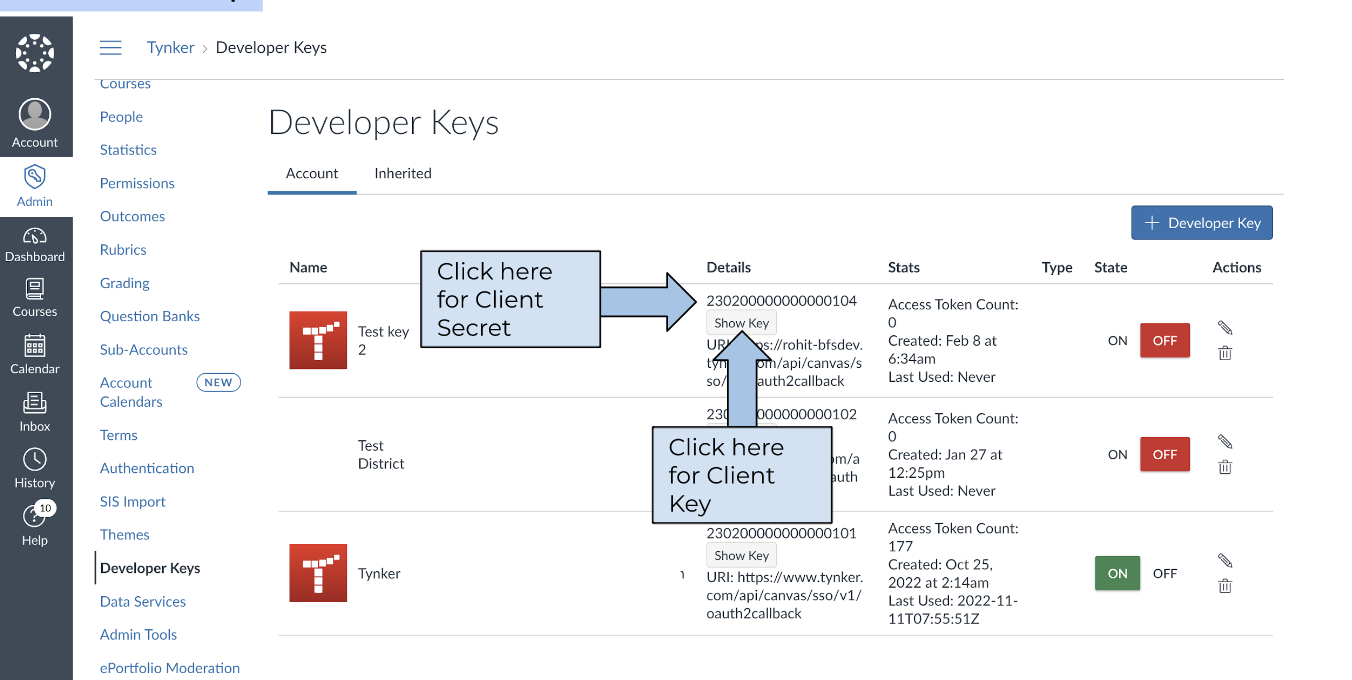
Fill in the form at https://gotyn.kr/canvasform with the following information
Token Number
API Client ID
API Client Secret
Base URI: (the portal address that your teachers use to login to Canvas)
You will receive an email back with a URL to input in the next steps from schools@tynker.com
Add Redirect App in Canvas
Click Admin in Canvas and then click your district account
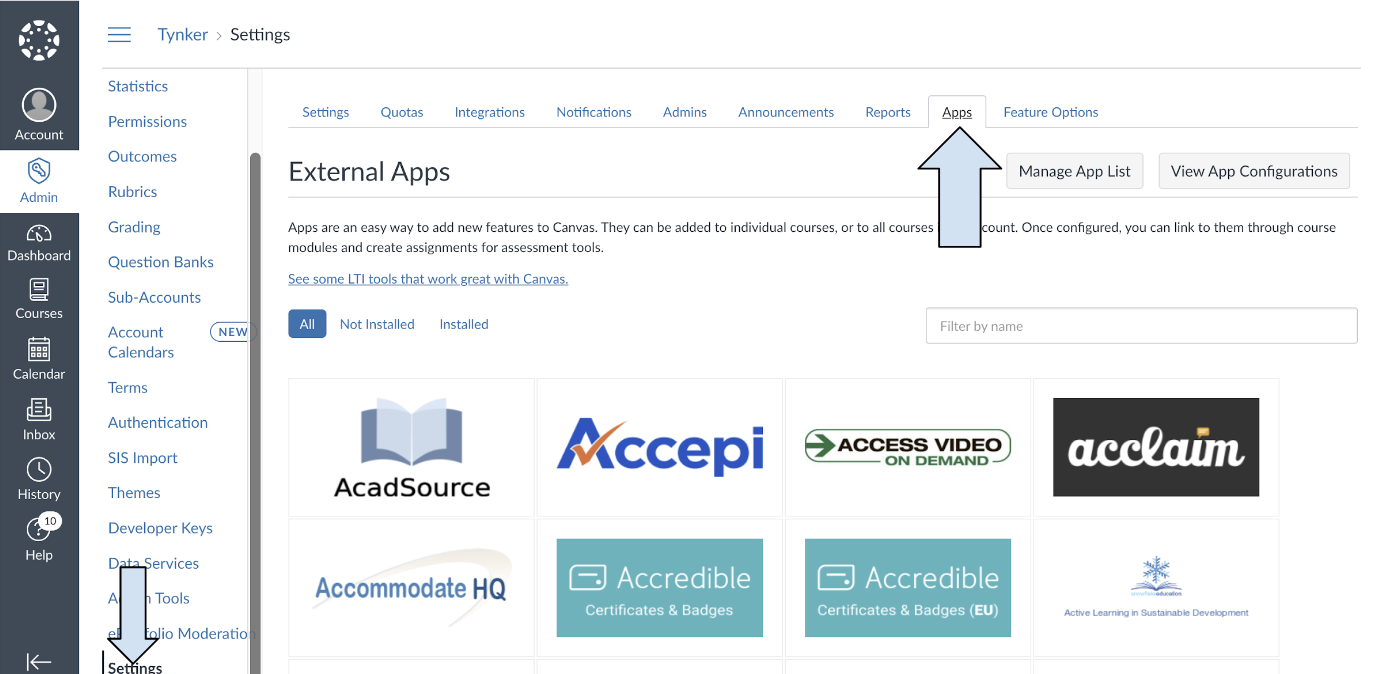
Click on Settings
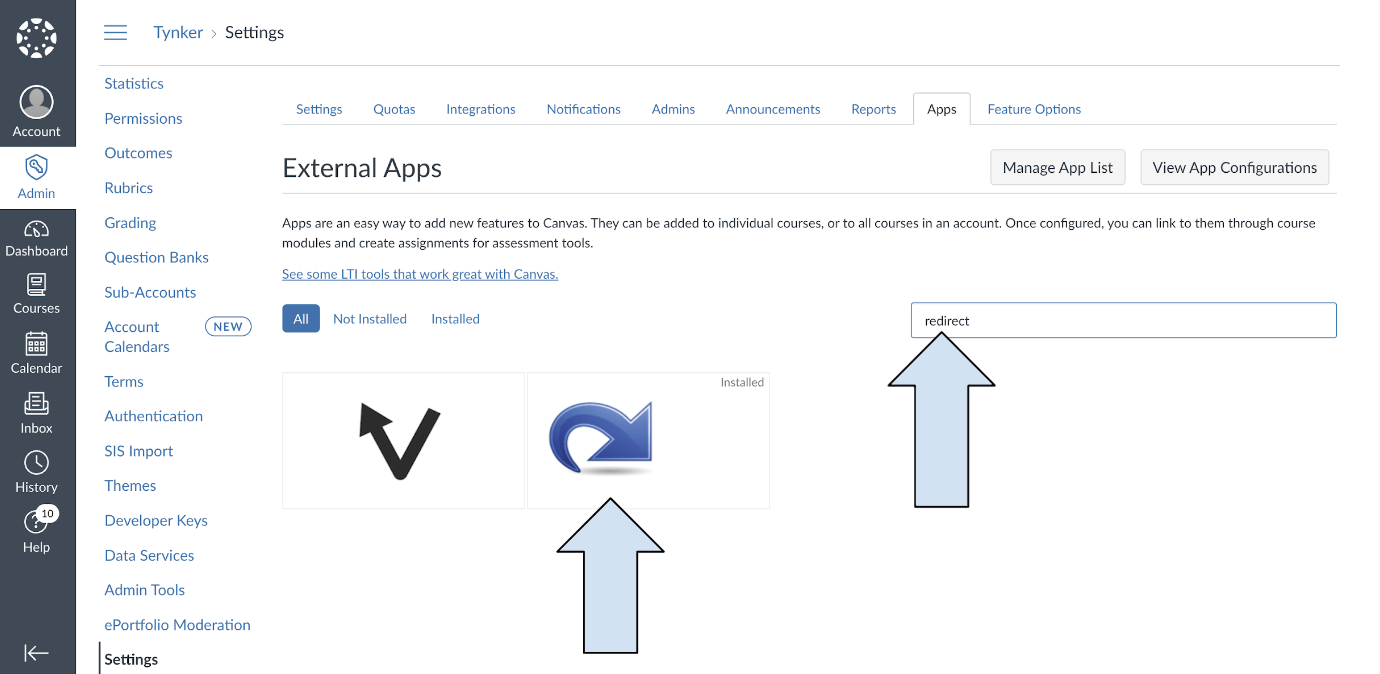
Click on Apps
Search for Redirect Tool
Click on it
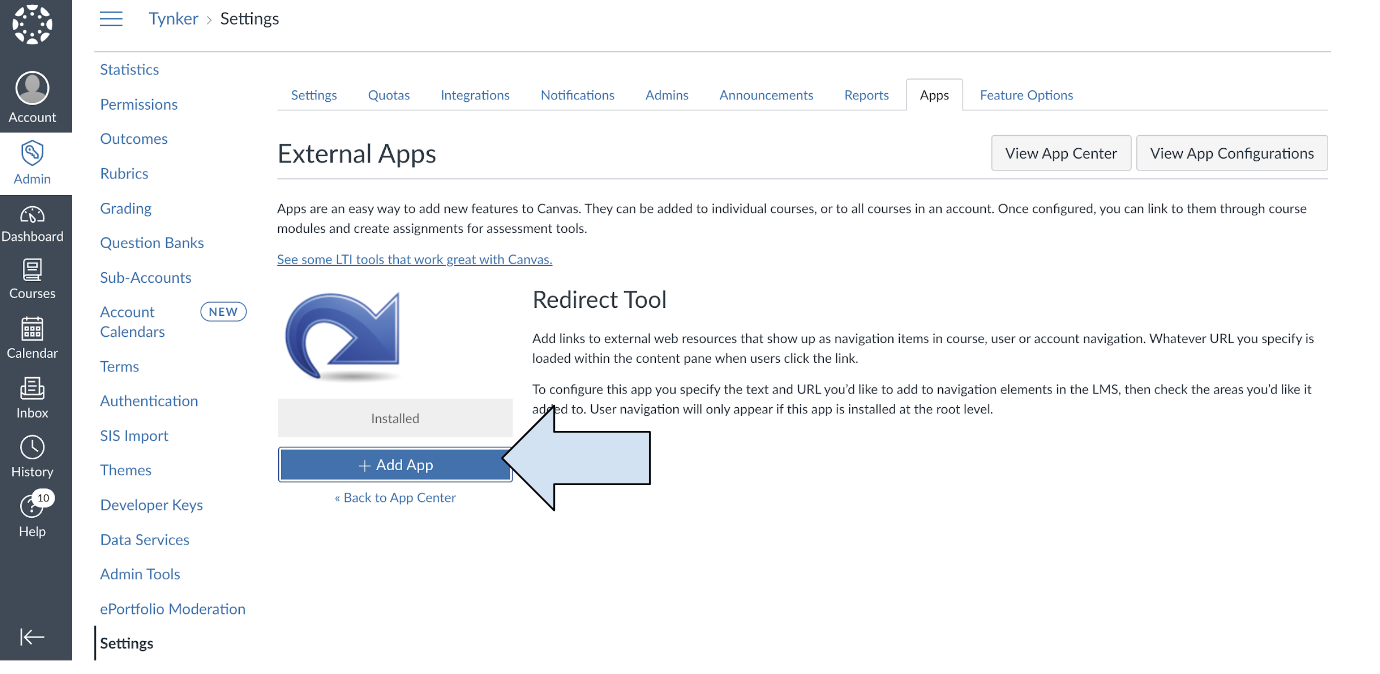
Add App
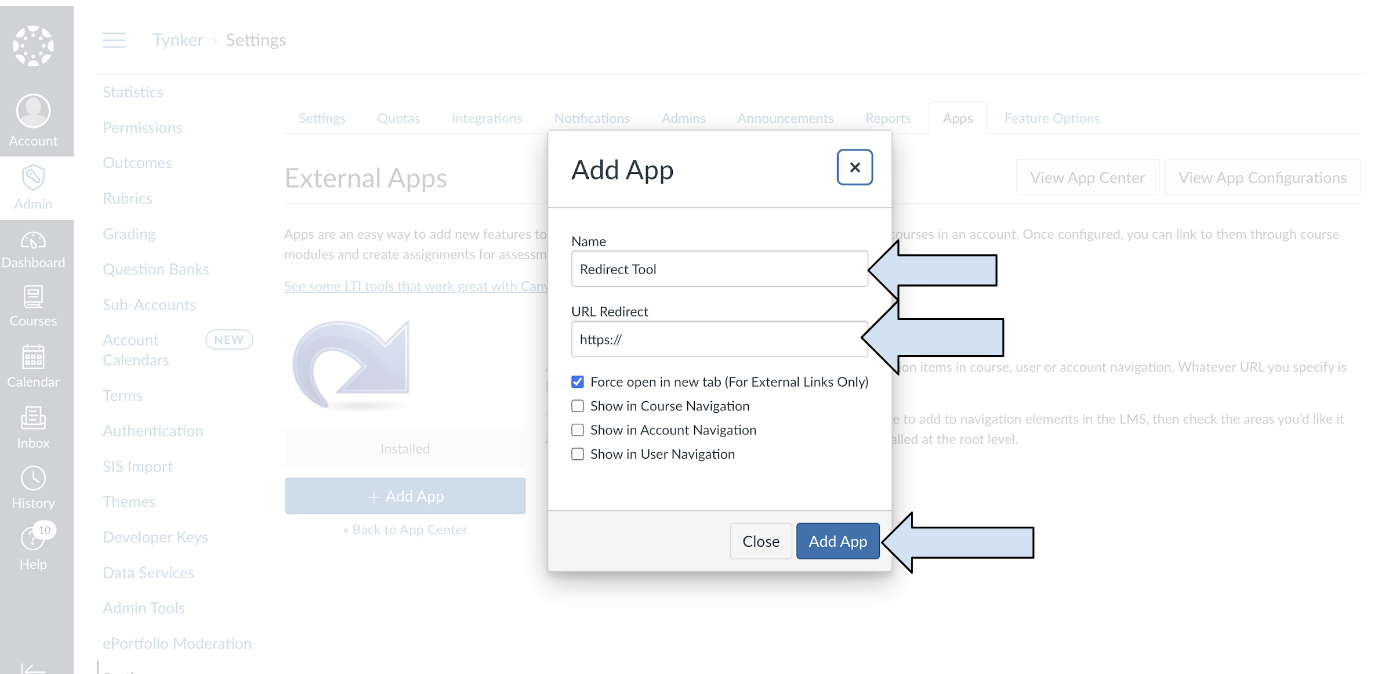
Change the name field to Tynker, place the URL you got back from schools@tynker.com in the URL redirect field, and click add app.
Teachers set up and roster their classrooms in Tynker
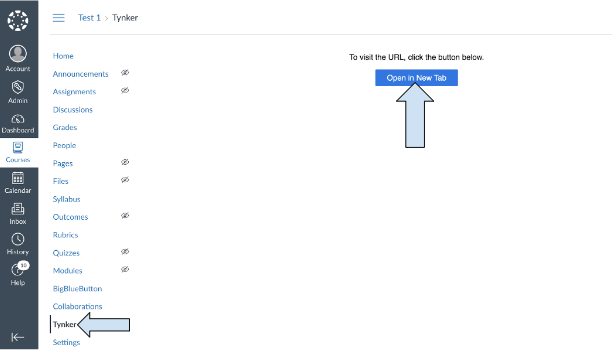
After initial setup, Tynker will appear as a link at the bottom of each of the teacher’s Canvas classrooms. Teachers need to make sure their course is published in order to move to the next step.
To roster students and enable access through Canvas, the teacher clicks that link and then the open in a New Tab button to log into their Tynker teacher dashboard.