
How do I set up a Tynker class with a Clever roster?
For Free Users:
Click the Tynker Login within Clever to sign into Tynker.
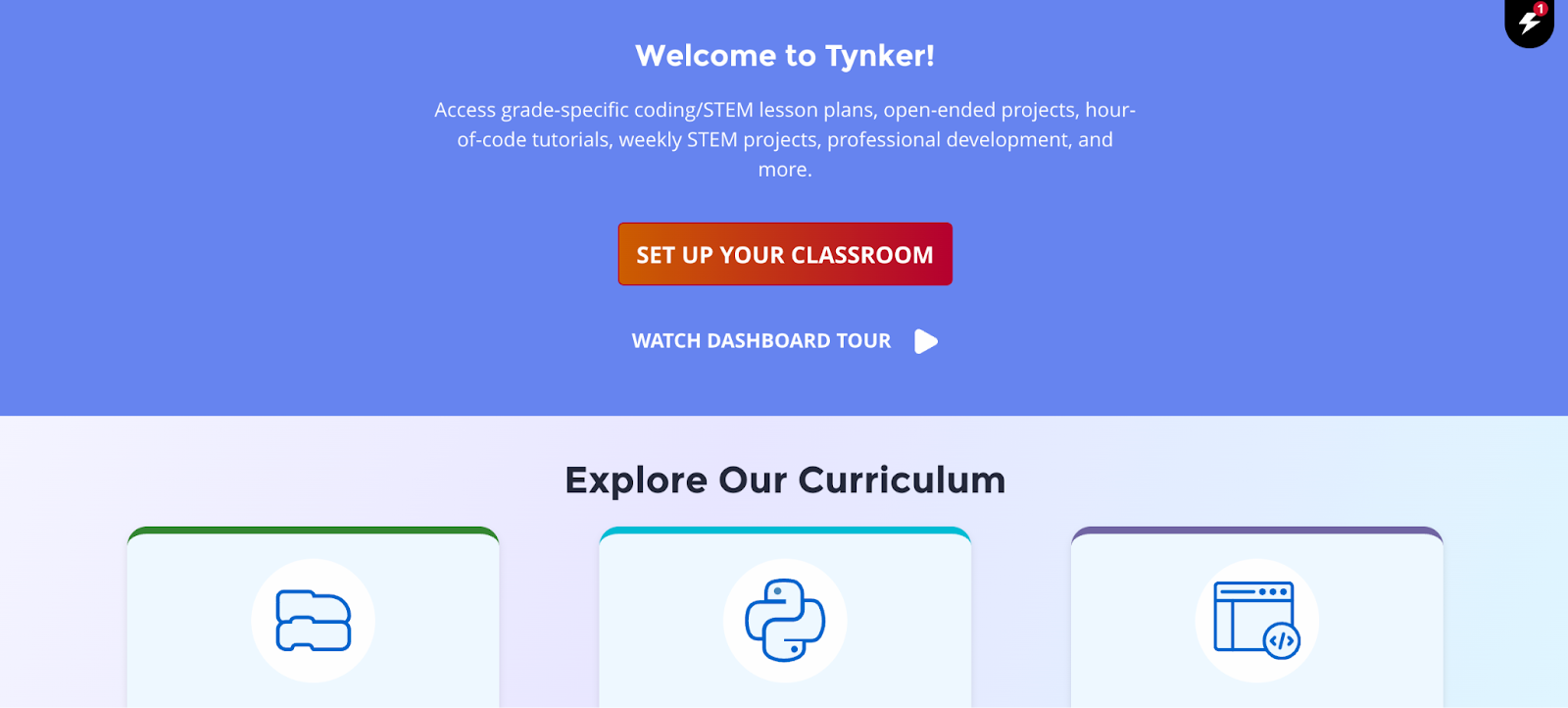
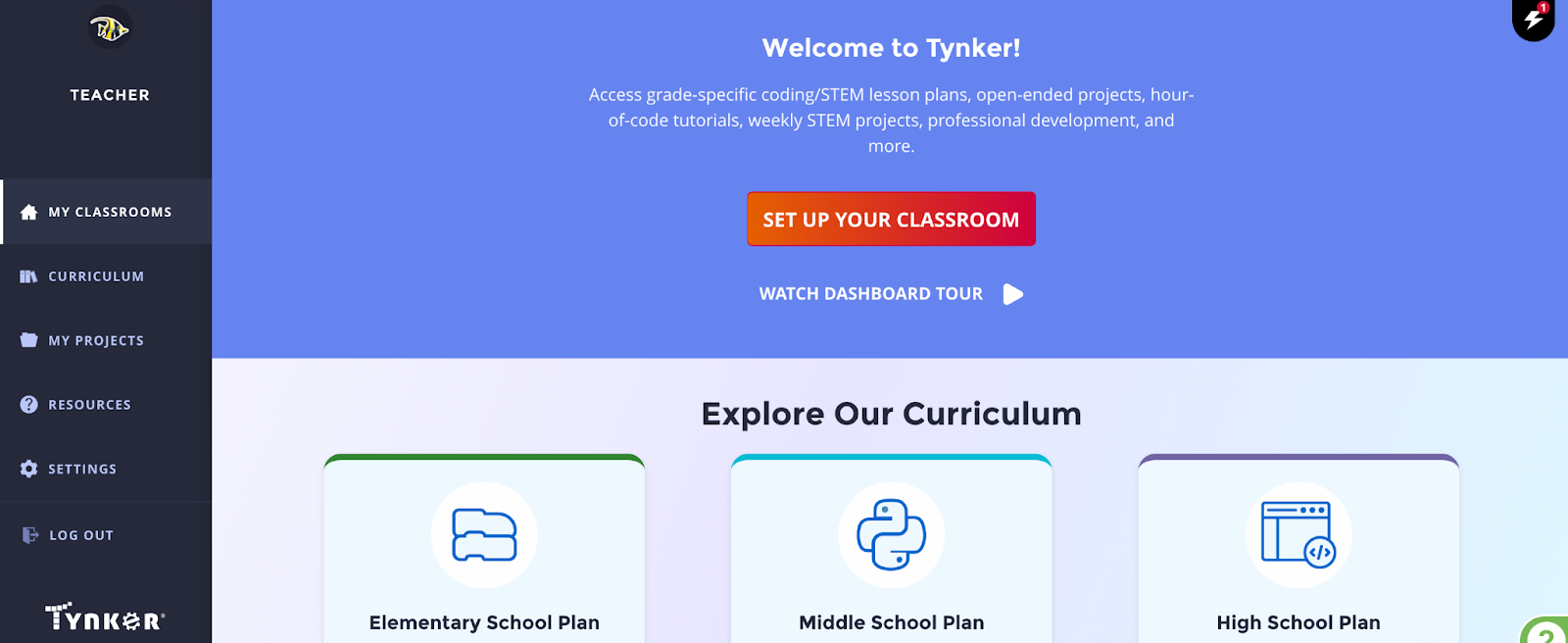
Click the Set Up Your Classroom button or the Add Classroom button.
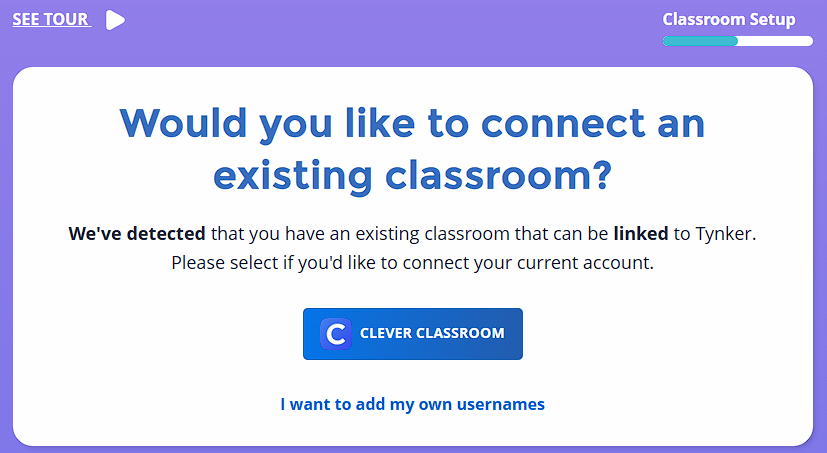
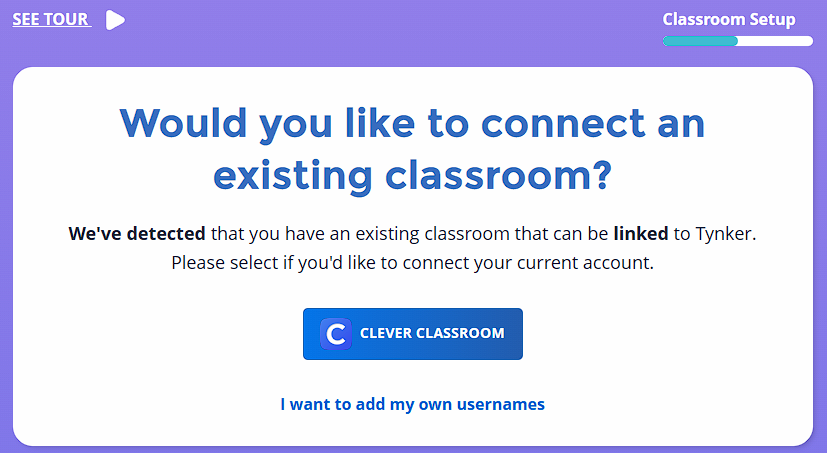
Click on the Clever Classroom button.
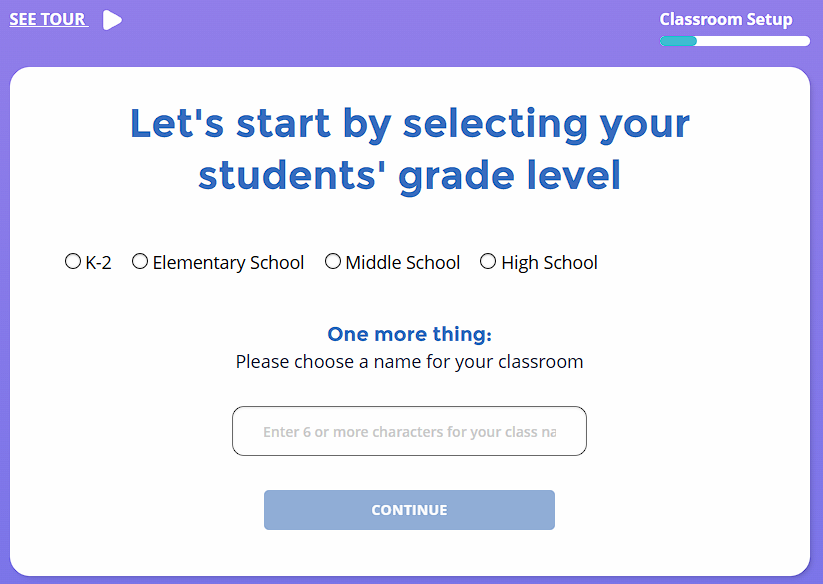
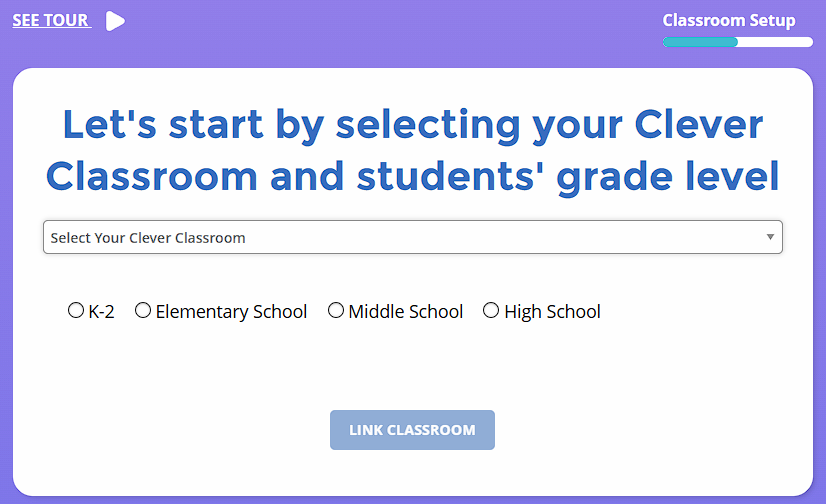
Give your class a name and grade band, then click continue.
Click the Clever logo, copy the class code, give the class code to students, and then click Finish and Go to Classroom.
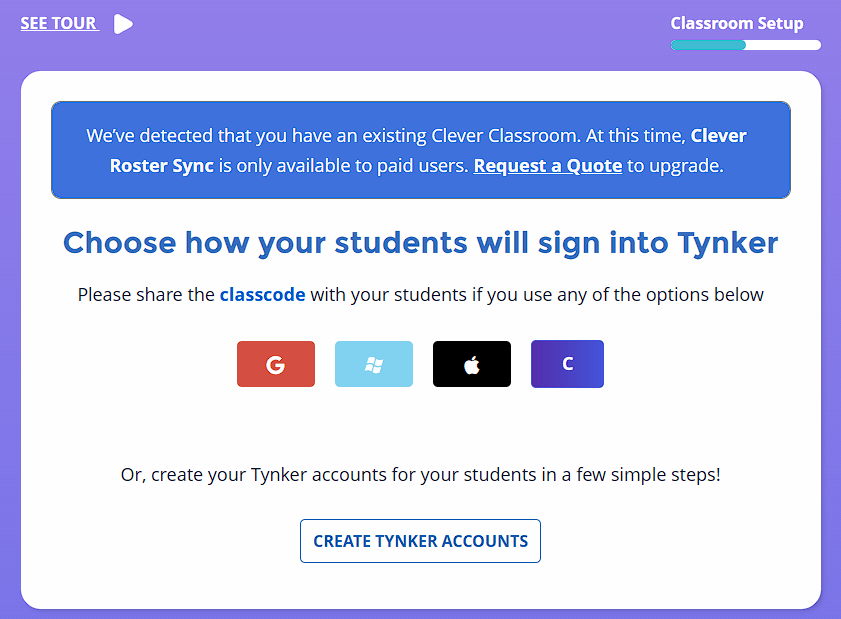
Students would then go to tynker.com/classcode, enter the class code, click the Clever button, and sign in with their Clever credentials.
For Premium Users:
Go to your district or school Clever portal and login to Tynker by clicking the Tynker Login Clever App
Go to My Classrooms and click Set Up Your Classroom or click Add Classroom to add an additional class.
Clever classes are automatically detected. Click the Clever Classroom button in order to connect your class.
Select the Clever Class from the drop down menu, select a grade band, and click Link Classroom. This will pull all rostering data shared through Clever for this classroom.
You can now start assigning lessons to the class.