What are the best practices as Tynker School administrator to prepare my account for the next school year?
Go to the Admin Page within your teacher account.
To Remove Teachers who have Left
Click on the teacher tab on the top of the page.
Check the box for any of the teachers that have left or you want to remove license access from.
Use the bulk action menu in the top left to do one of the following:
Deactivate: Account is not active but can be reactivated for project or data retrieval (Recommended)
Delete: Removes the user completely
Disable License: Teacher has a free account and data populates in your dashboard without them having access to the license
To Remove Students who have Left
Click on the students tab to the top of the page.
Search students who have moved on from your school or district either by name in the search box or by teacher in the drop down menu.
Check the box for any of the students that you want to move, and click the bulk action menu in the top left.
Use the bulk action menu in the top left to do one of the following:
Deactivate: Account is not active but can be reactivated for project or data retrieval (Recommended)
Delete: Removes the user completely.
To archive classes
Note: The previous year’s classes will be automatically archived on August 1st before the new school year. If you (or your teachers) created new Tynker classes after July 1st, these should still be Active in the teacher dashboard.
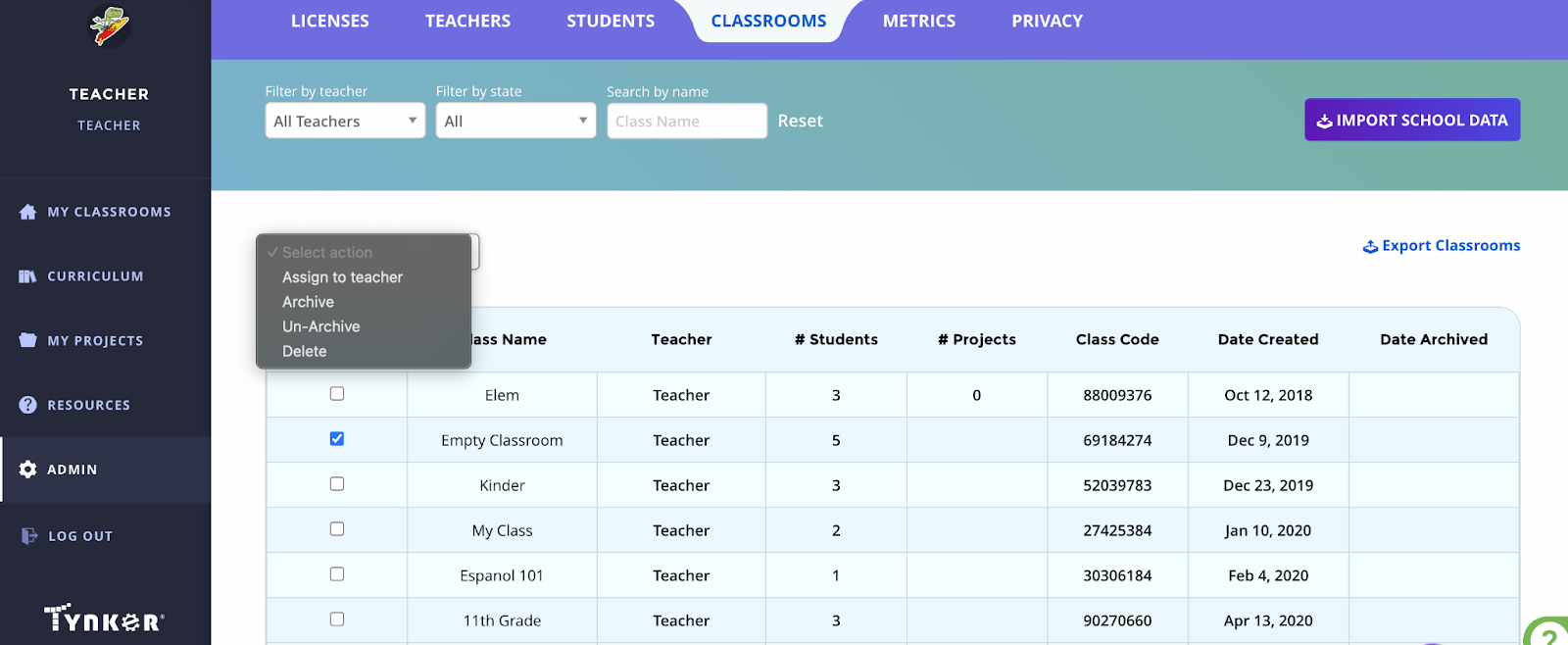
To manually archive, go to the classrooms tab on the top of the page.
Check the box next to the classes from the previous year. If a class carries over to the next year, don’t check it off.
Click the bulk action menu in the top left
Click archive.