How can I import all of my school data into my Tynker license as a school administrator?
Go to tynker.com -> click Log In -> click Teacher -> select the login method and enter your admin account credentials.
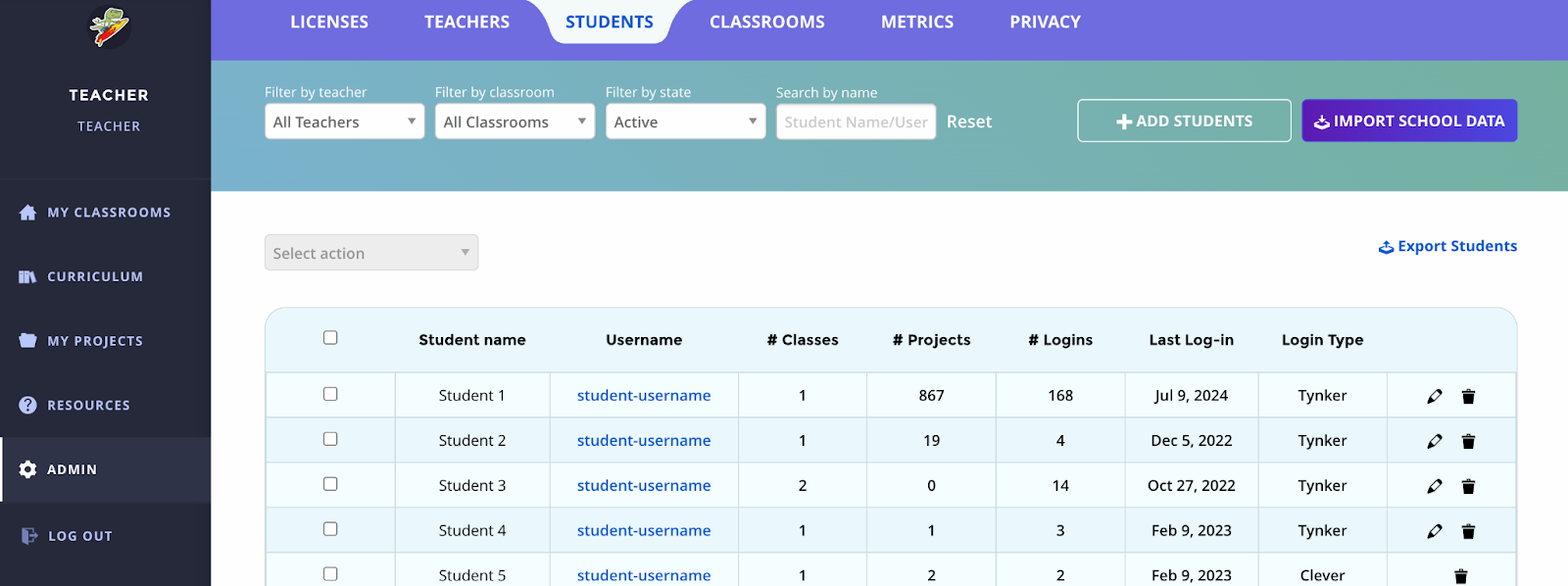
Once logged into the dashboard, click the admin page on the left navigation.
Click import school data, which can be found in the top-right of the “license”, “students”, and “classrooms” tabs.
Click import school data and choose whether you are using Google accounts, Tynker, or Microsoft accounts for teachers, and then choose the same option for students.
If you are using Google accounts, you will just need to add the teachers’ Google emails, class name, and student emails to the spreadsheet. You can find the spreadsheet HERE :
If you are using Tynker accounts (usernames and passwords created at the site), click the school emails tab and fill out the spreadsheet with created usernames and passwords for both the teacher and student as well as adding the class names. You can find the spreadsheet HERE :
If you are using Microsoft accounts, click the school emails tab and fill out the spreadsheet with created usernames and for both the teacher and student as well as adding the class names. You can find the spreadsheet HERE