
Reset Student Password
Edited
Teachers can reset a student's Tynker password directly from the Students tab in their classroom.
1. Log in to your Tynker teacher account.
2. Go to My Classrooms and select the classroom where the student is enrolled.
3. Click the Students tab.
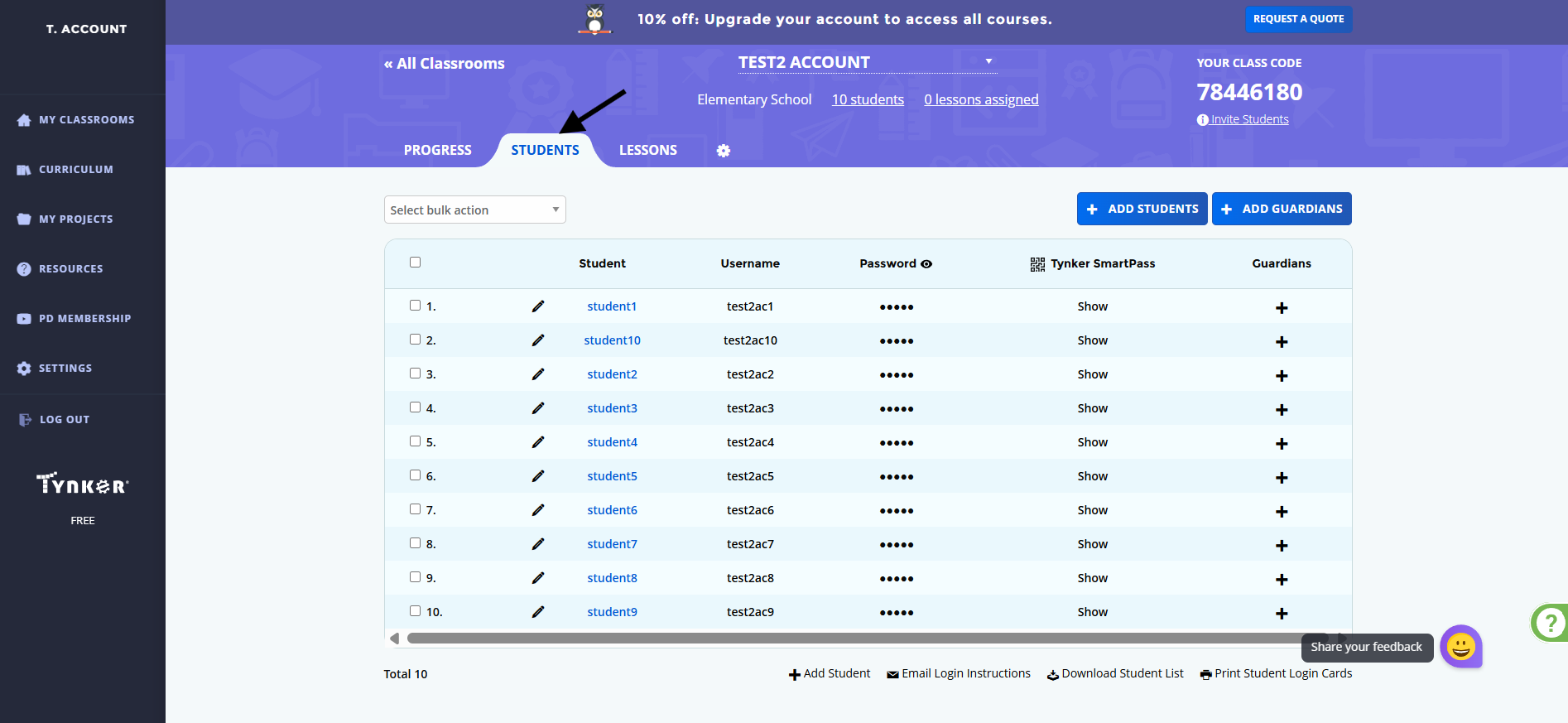
4. Find the student whose password you want to reset and click the pencil/edit icon next to their name.
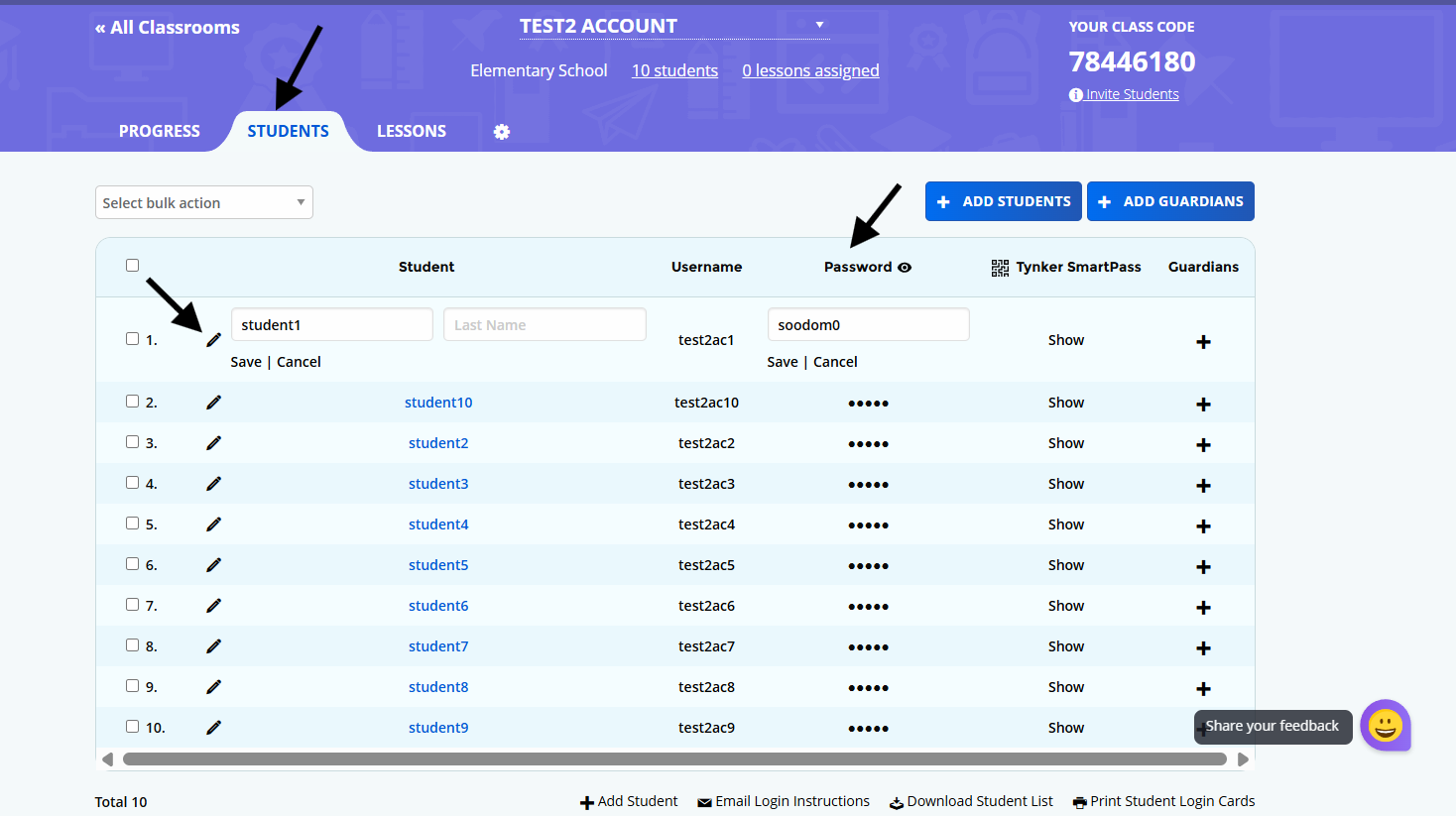
5. Enter the student's new password in the Password field.
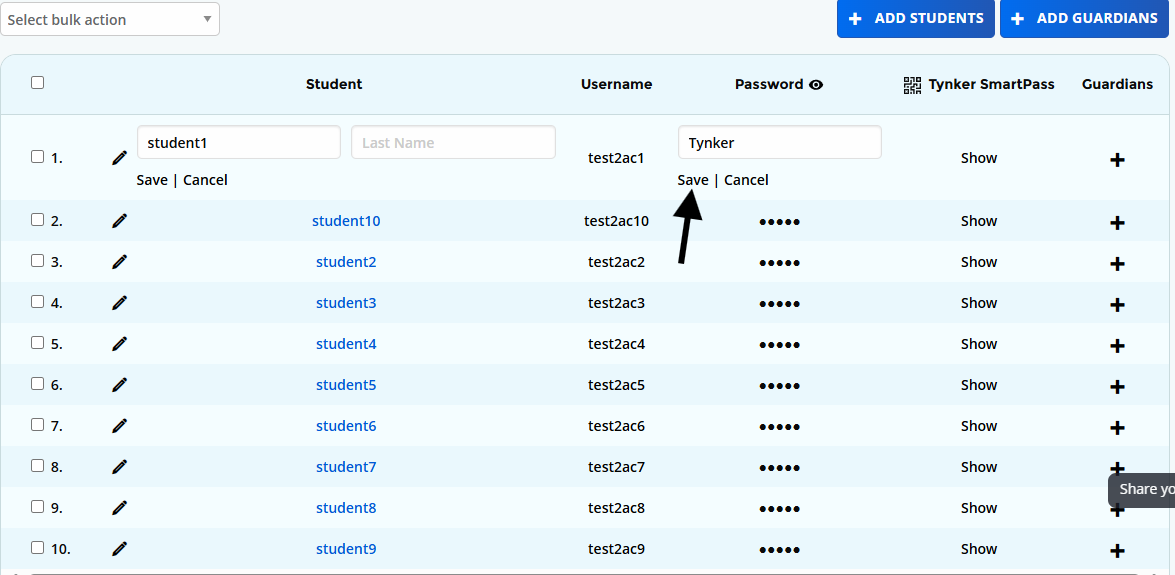
6. Click Save.
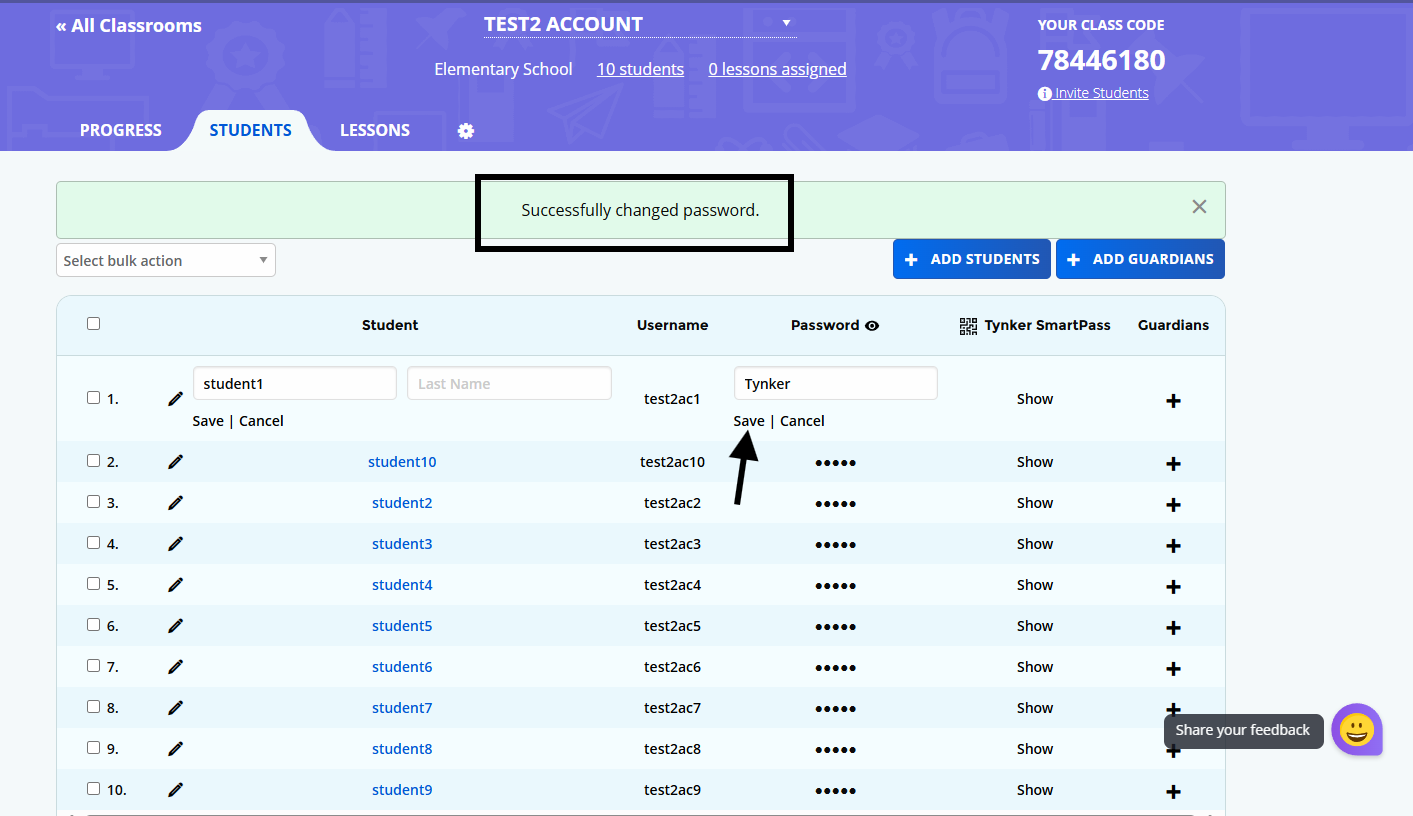
The student's password will be updated, and they can use the new password to log in to their Tynker account.
.