
Managing Games Access in Your Classroom
Tynker allows teachers to manage Games Access for their classrooms when this setting is available to them. School administrators can also control Games Access at the school level, which may restrict the options available to teachers.
How Games Access Works
Games Access can be controlled at different levels:
District → School → Classroom
Higher-level administrator settings take priority over classroom settings. If an administrator has restricted Games Access, teachers cannot override that restriction.
Check Your Games Access Setting
You can view the Games Access setting from your classroom settings.
Log in to your Teacher Dashboard.
Open the classroom you want to manage.
Go to Classroom Settings.
Locate Games Access.
The classroom settings will show whether Games Access is controlled by you or controlled by an administrator.
When Games Access is teacher-controlled
If your school administrator has given teachers control over Games Access, you can:
View the available Games Access options.
Select the option you want to apply to your classroom.
Change the setting as needed for your classroom.
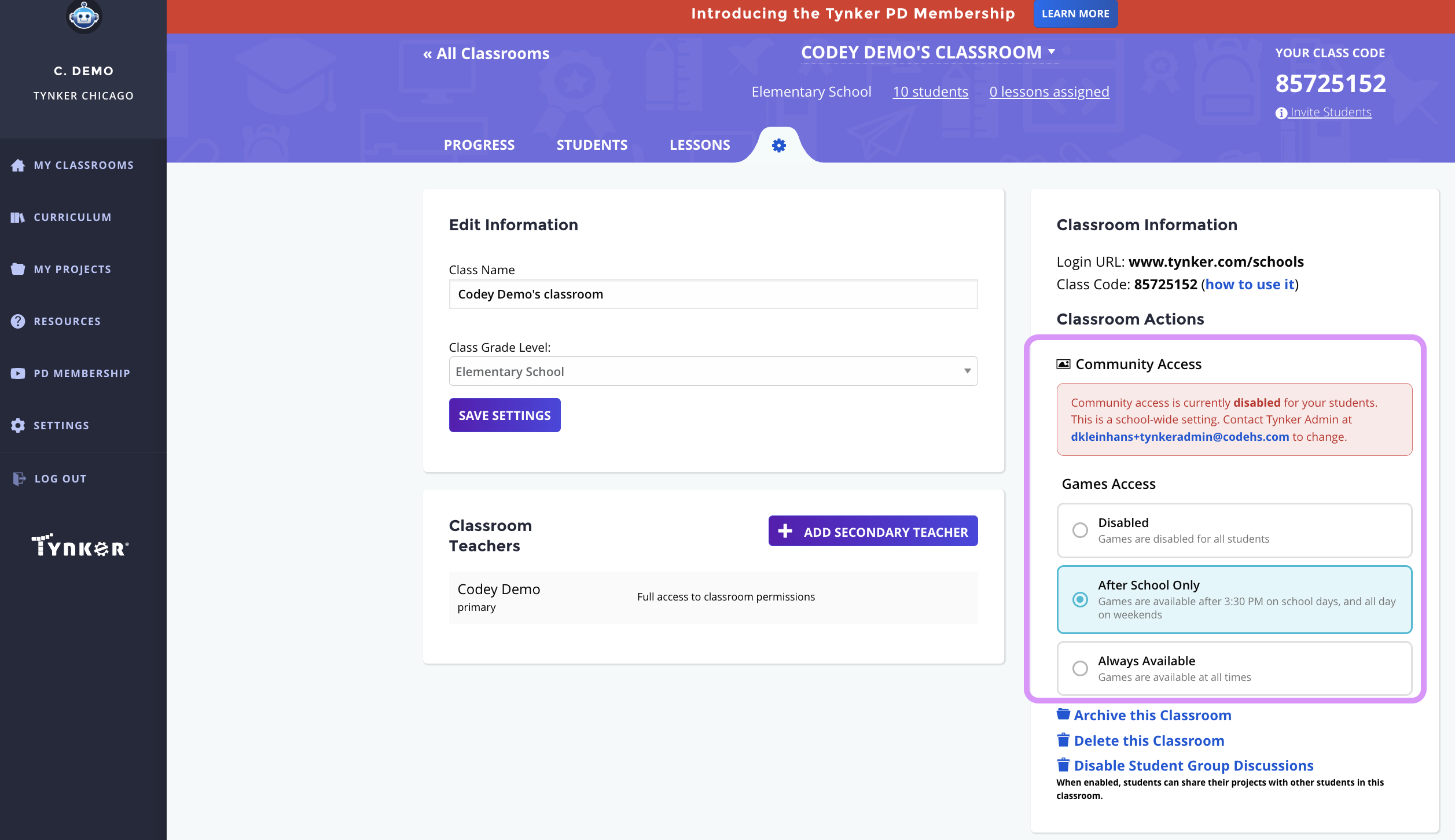
When Games Access is controlled by an administrator
If a school or district administrator has restricted Games Access:
The administrator's setting will be displayed in your classroom settings.
You will be able to see that the setting is controlled by an administrator.
You cannot override the administrator's restriction.
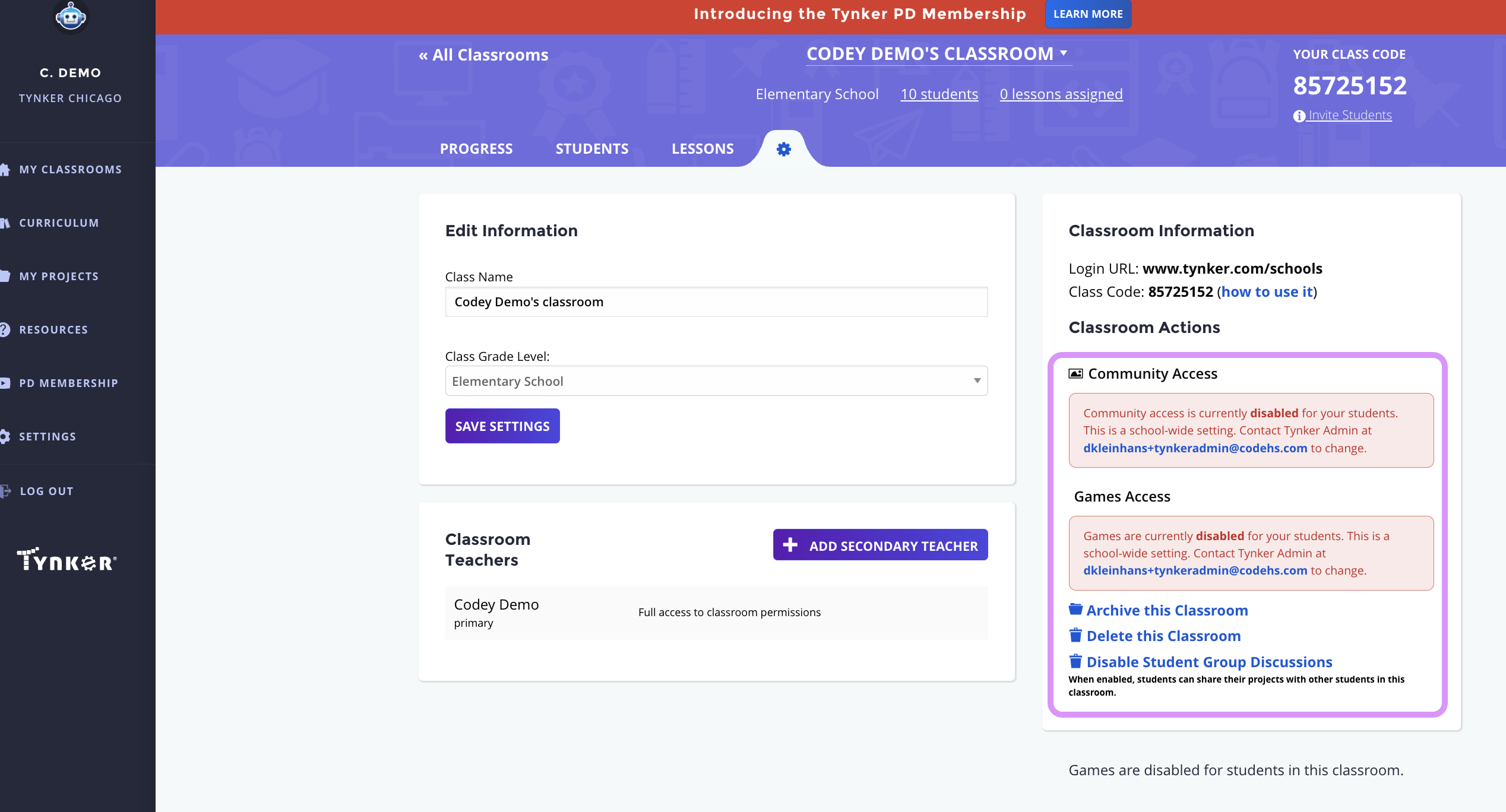
Students in Multiple Classrooms
If a student is enrolled in multiple classrooms with different Games Access settings, a restriction in one classroom may affect the student's overall access to Games.
For example:
Classroom A → Games allowed
Classroom B → Games disabled
The restriction in Classroom B will prevent the student from accessing Games.
Frequently Asked Questions
Can I enable Games if my school administrator has disabled them?
No. Administrator restrictions take priority over classroom settings.
Why can't I change the Games Access setting?
Your school or district administrator may have restricted Games Access. When this happens, the classroom settings will display the administrator-controlled setting instead.
Why do I see different Games Access options in different classrooms?
Games Access is managed at the classroom level when teacher control is enabled. Your available options may also depend on settings configured by your school or district administrator.