Understanding Admin Metrics
The Metrics tab gives administrators an overview of Tynker usage and student activity across their school.
To view metrics:
Select Admin from the left navigation menu.
Select Metrics.
Use the School Year, Sort By, and Select Teacher filters to adjust the information displayed.
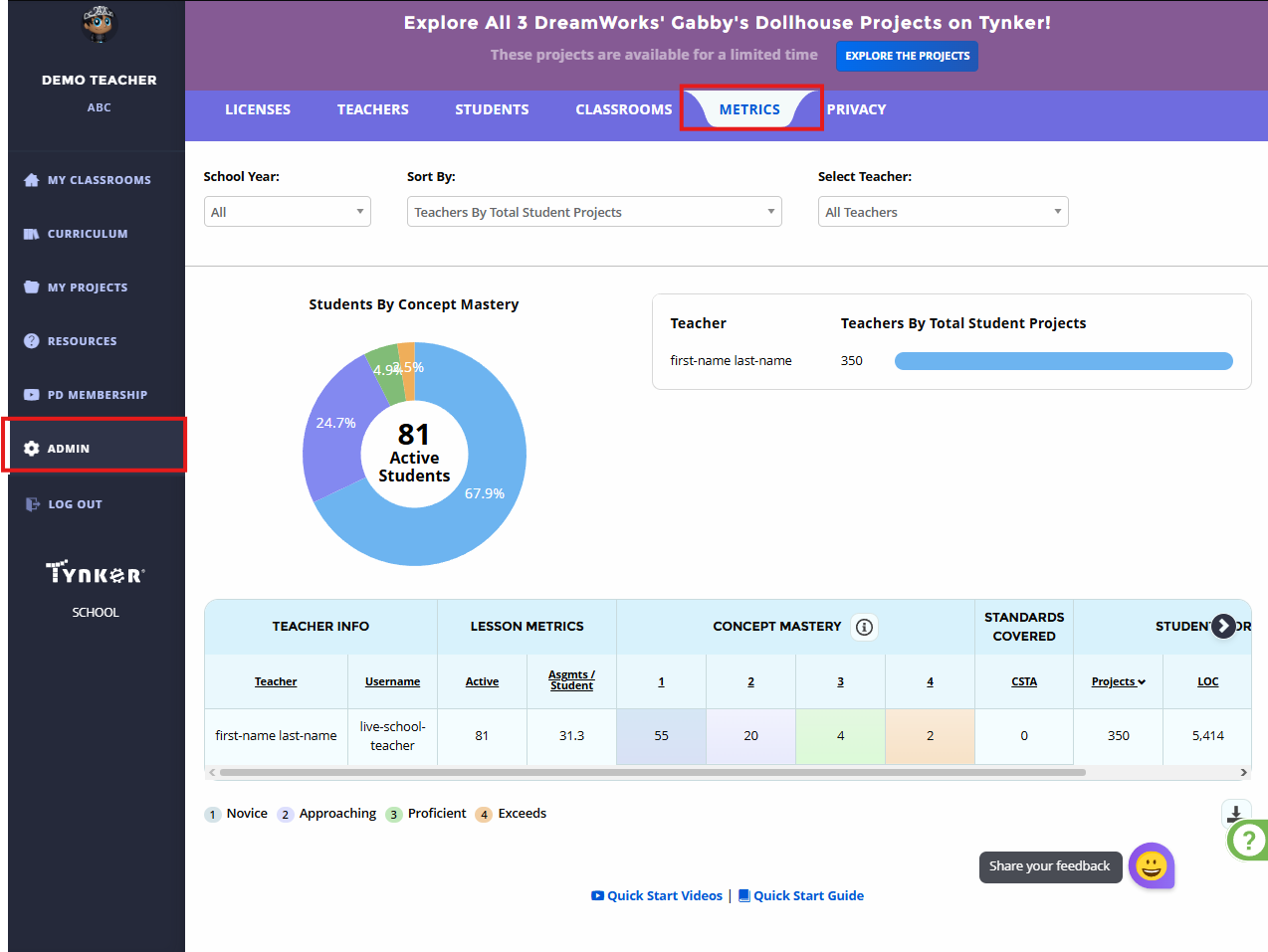
The dashboard can include information such as:
Teacher Info
Teacher: Teacher's Name
Username: Teacher's Username
Lesson Metrics
Active: Number of Active Students
Asgmts / Student: Average of assignments completed by student
Concept Mastery: grouped into four levels: Novice, Approaching, Proficient, and Exceeds.
Standards Covered
CSTA: Number of CSTA Standards covered by active student
Student Work
Projects: Number of coding projects created by active students
LOC: Lines of code created by active students
Certs: Number of certificates awarded to active students
Teacher activity
Use the available filters to review school-wide information or focus on an individual teacher.