
Step 2: Import Your Google Classroom Teachers
Once your administrator account has been provisioned, you can begin managing your school or district.
Import your teachers so they can access their Tynker Teacher Dashboard and connect their Google Classrooms.
Teachers can be added individually or imported in bulk using a CSV file.
Add Teachers Individually
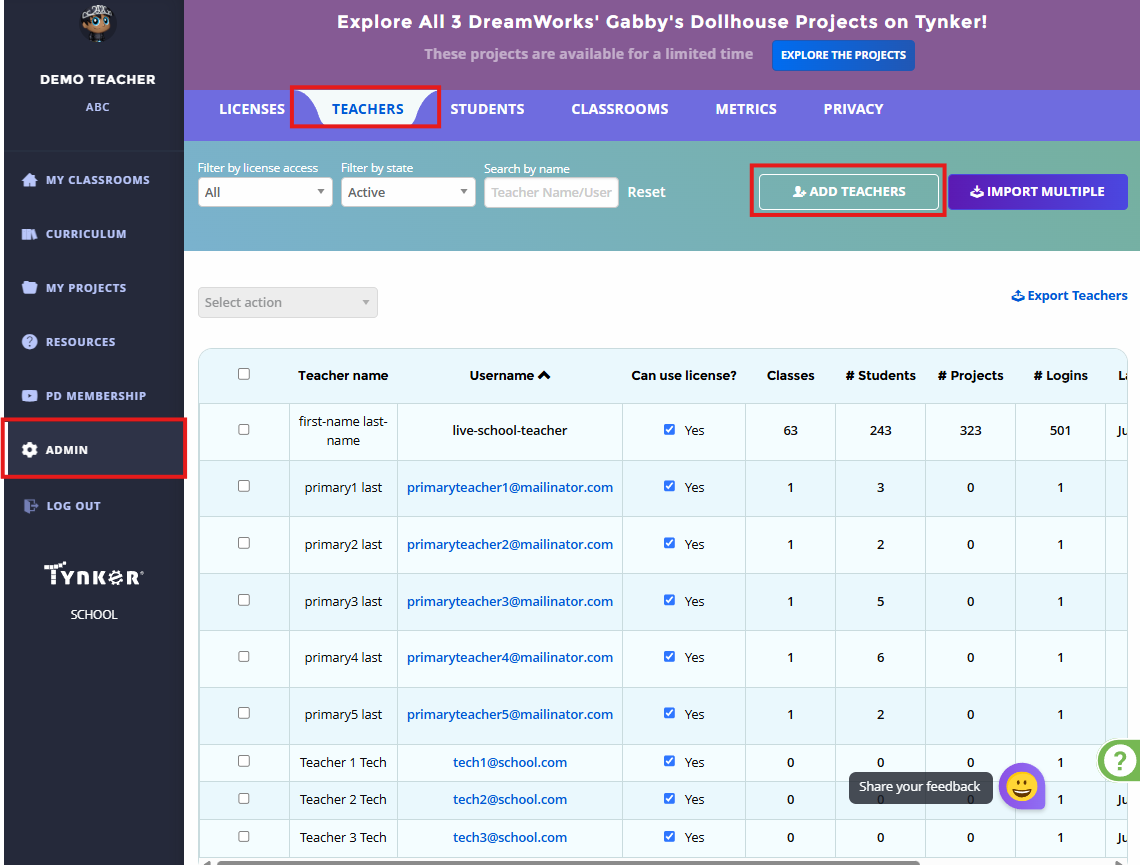
Go to Admin.
Open the Teachers tab.
Click Add Teacher.
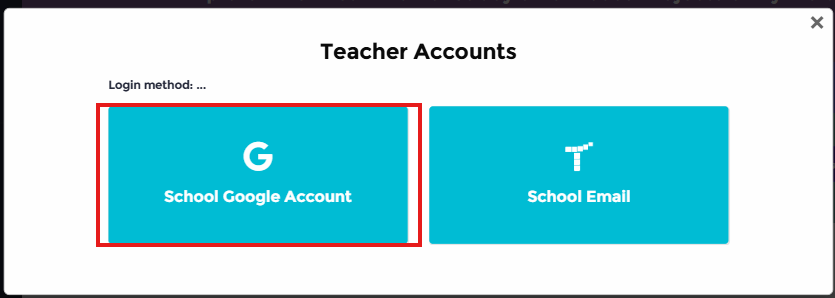
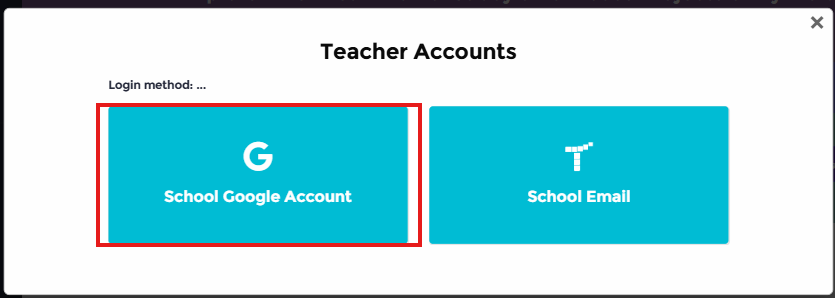
Select School Google Account as the login method.
Complete the required field (Email).
Click Add Teachers.
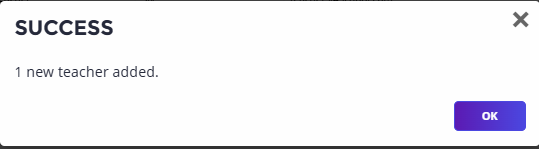
A confirmation message will appear once the teacher has been successfully added.
Important: Ensure there are no duplicate email addresses or missing required fields to avoid errors.
Import Multiple Teachers Using a CSV File
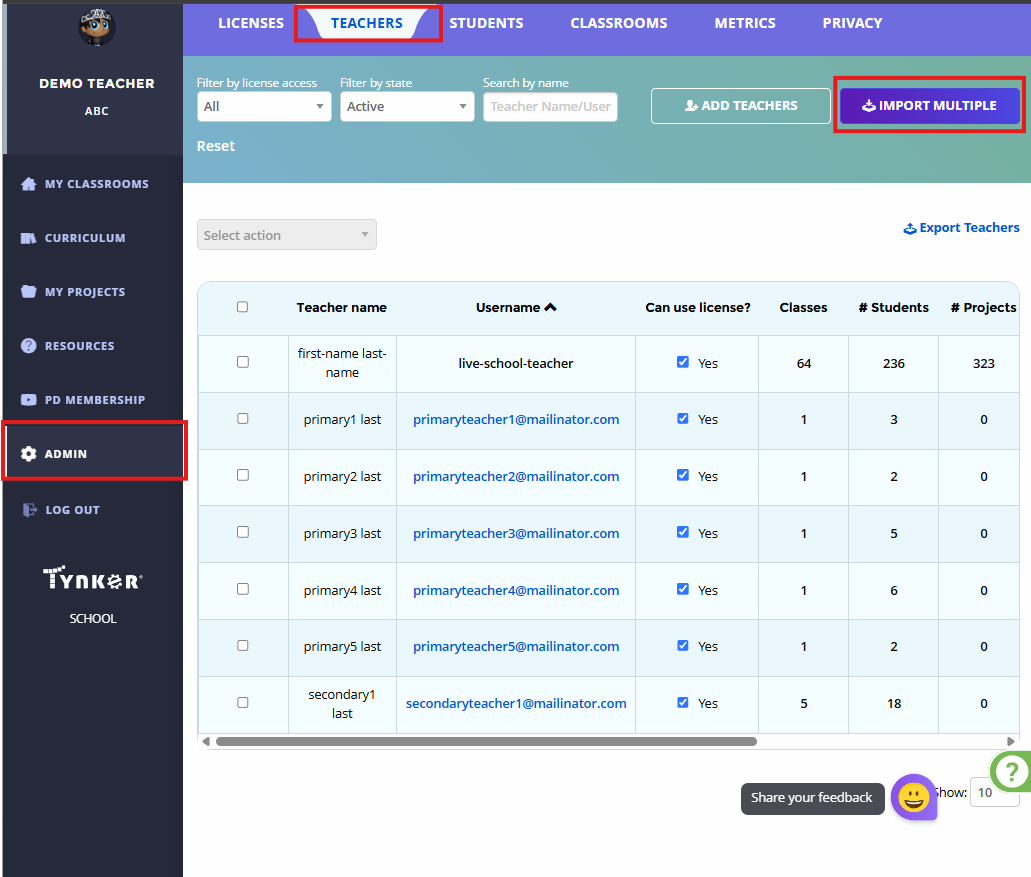
Go to Admin.
Open the Teachers tab.
Click Import Multiple.
Select School Google Account as the login method.
Download the sample CSV template.
Complete the required column (Teacher Email).
Upload the completed CSV file.
Review the imported information.
Click Add Teachers to complete the import.
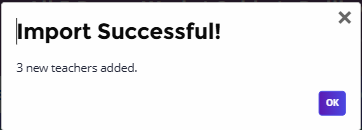
A confirmation message will appear once the teachers have been successfully imported.
Important: Ensure there are no duplicate email addresses or missing required fields to avoid import errors.
After import:
Review the teacher accounts.
Confirm that all teachers were added successfully.
Pro Tip: You can re-import the CSV file or manually edit teacher accounts later if any changes are needed.
➡️ Next Steps
Now that your Google Classroom teachers have been imported, continue to:
👉 Step 3: Ask Teachers to Sync Their Google Classrooms