
Sync Your Classroom with Google Classroom
If you use Google Classroom to roster your students, you can connect your Google Classroom to Tynker and sync your classroom roster.
Before you begin
Make sure you have a Tynker teacher account authenticated using Google.
Step 1: Create your class in Google Classroom
Log in to Google Classroom.
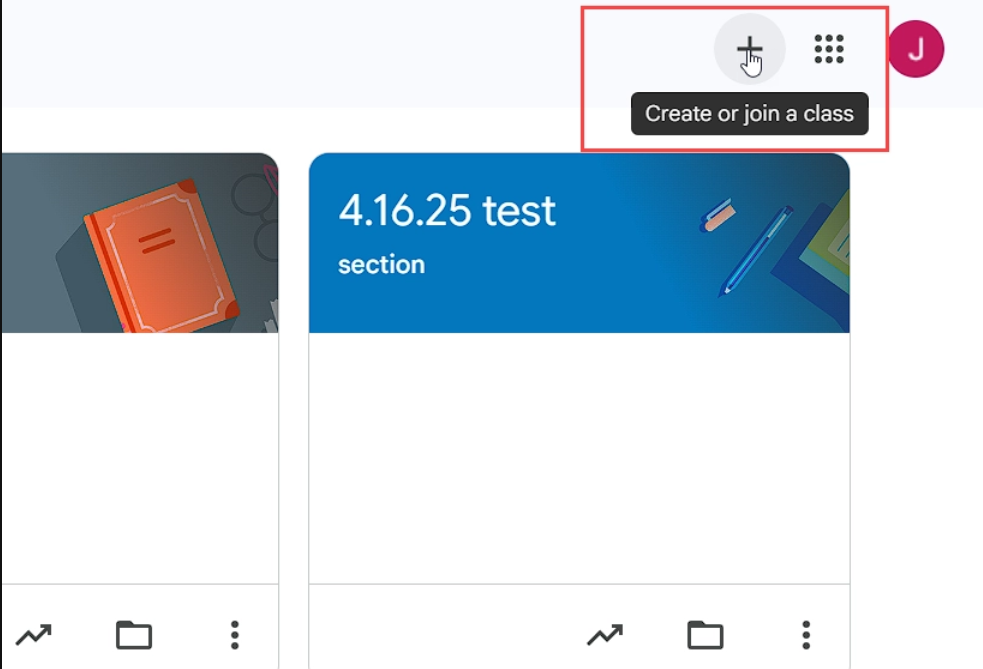
Click the + button and select Create class.
Create your classroom.
Step 2: Add students to your Google Classroom
Open your Google Classroom.
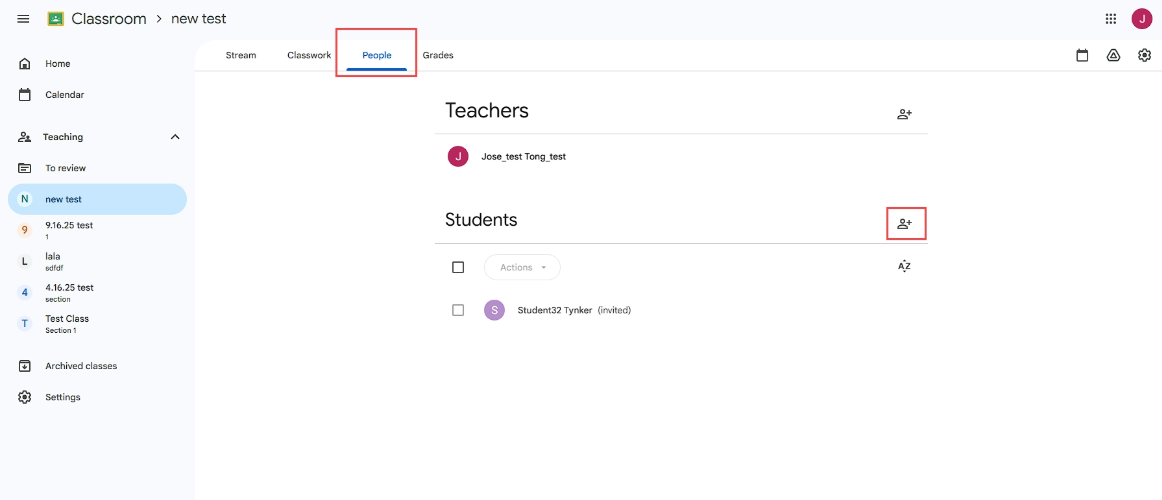
Go to the People tab.
Under Students, click the invite students icon.
Invite the students you want to add to the class.
Step 3: Have students accept the invitation
Students need to accept the invitation from their Google Classroom.
Once a student accepts the invitation, “(invited)” will no longer appear next to their name.
Step 4: Connect your Google Classroom to Tynker
Log in to your Tynker teacher dashboard.
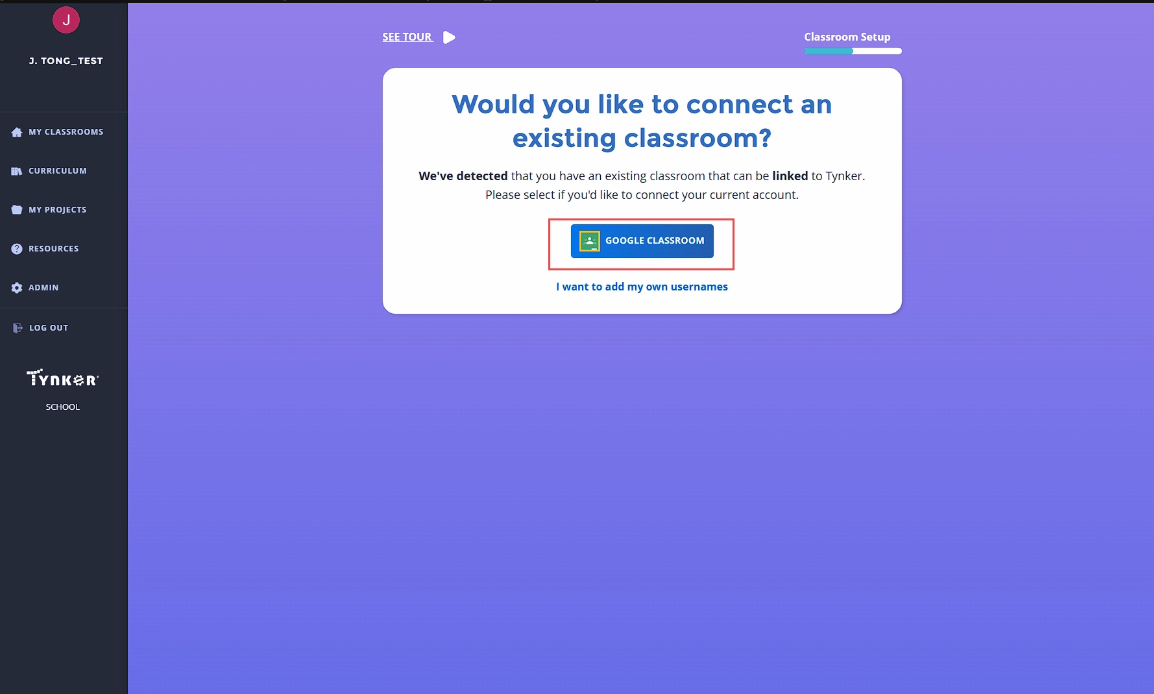
Select Add Classroom or Set up your classroom.
Select Google Classroom.
Step 5: Select your Google Classroom
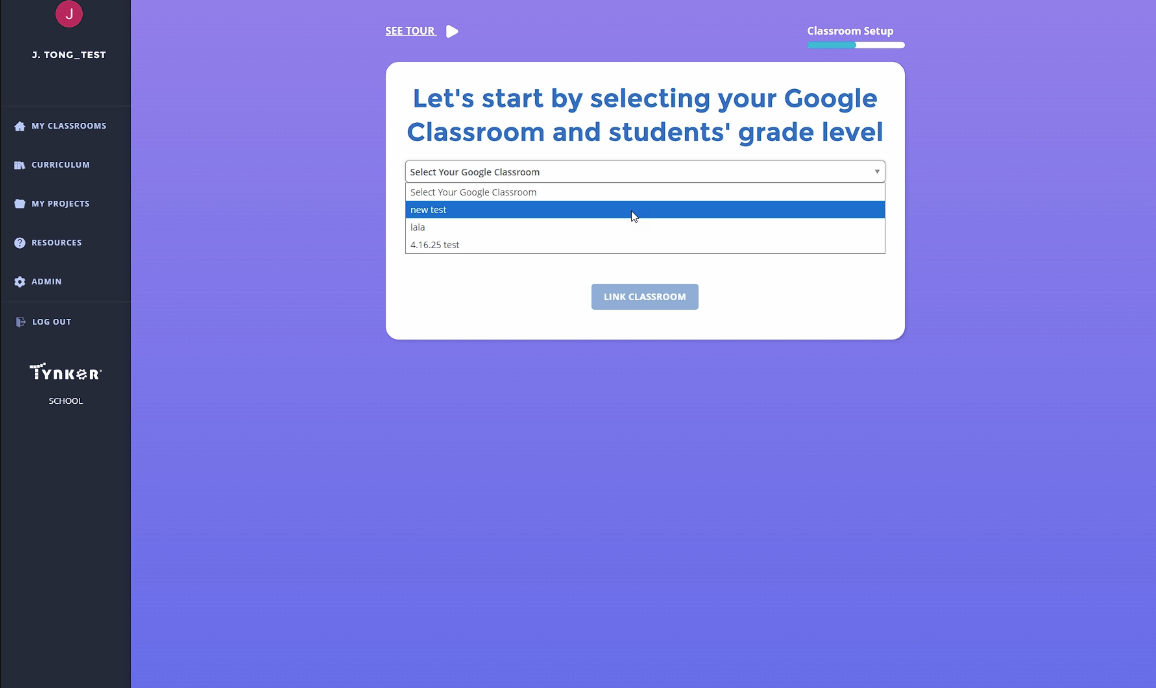
Select the Google Classroom you created earlier.
Then select the appropriate grade level.
Click LINK CLASSROOM.
Step 6: Verify your students
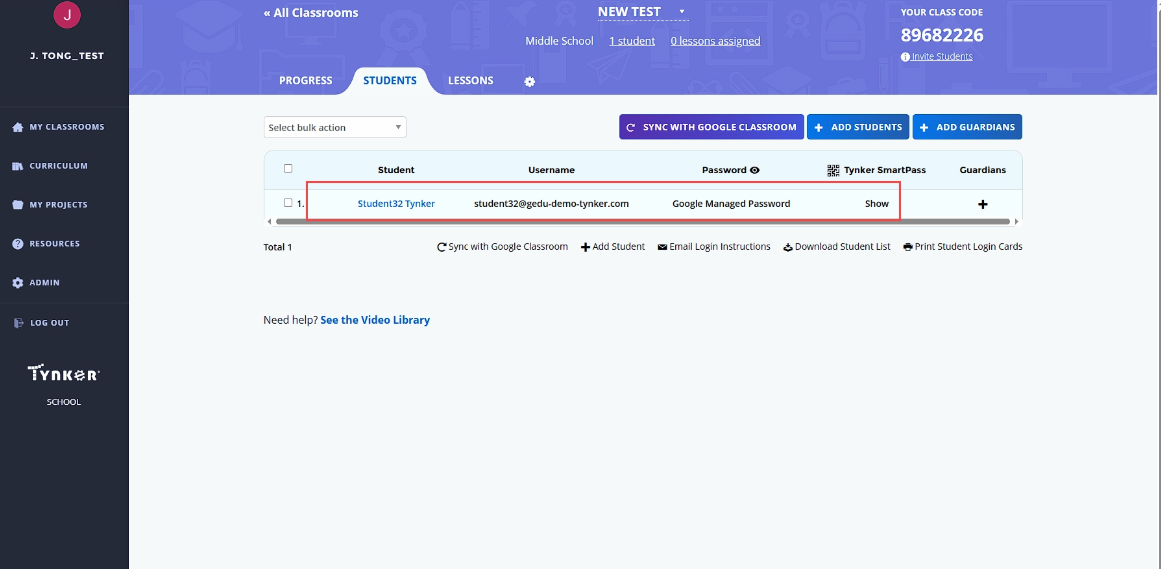
After linking the classroom, check the Students tab in Tynker.
The student roster should match the students in your Google Classroom.
Adding students after the initial setup
Step 7: Add new students in Google Classroom
When you add a new student after the classroom has already been connected:
Add/invite the student in Google Classroom.
Make sure the student accepts the invitation.
In Tynker, open the classroom and go to the Students tab.
Click Sync with Google Classroom.
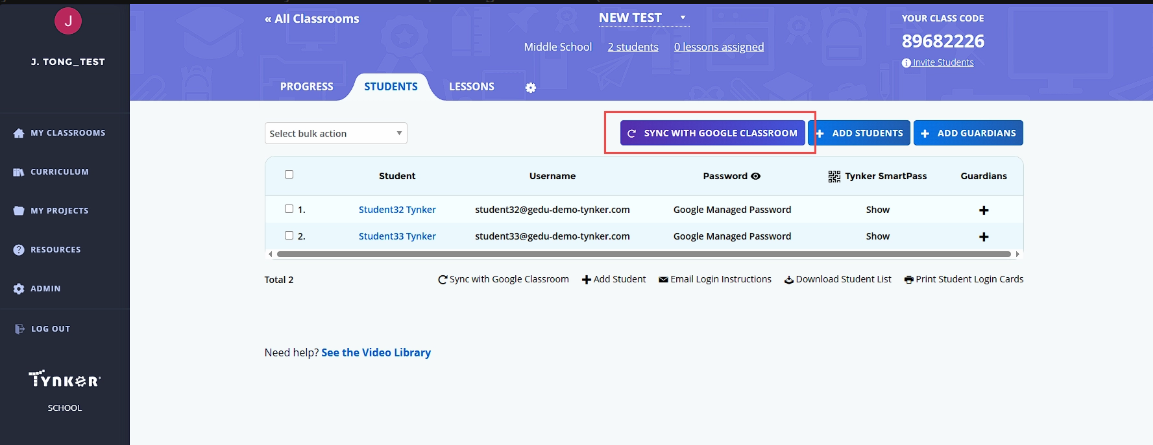
Then the student should appear in your Tynker classroom without needing to manually add them through Add Students.