
Tynker Junior - All Access Account
An all-access account is a shared Tynker Junior account that is set up with every lesson already unlocked. It is designed for shared devices (iPads / Chromebooks) - like a classroom center, station, or device cart that different students use throughout the day. Because all lessons across all courses are unlocked, students can open any lesson you point them to and start coding right away.
What students see when they sign in
All Tynker Junior coding adventures are unlocked and ready to open. There are no greyed-out lessons that students need to work past.
All lessons initially appear with three stars. This is normal, every lesson is still replayable and tappable.
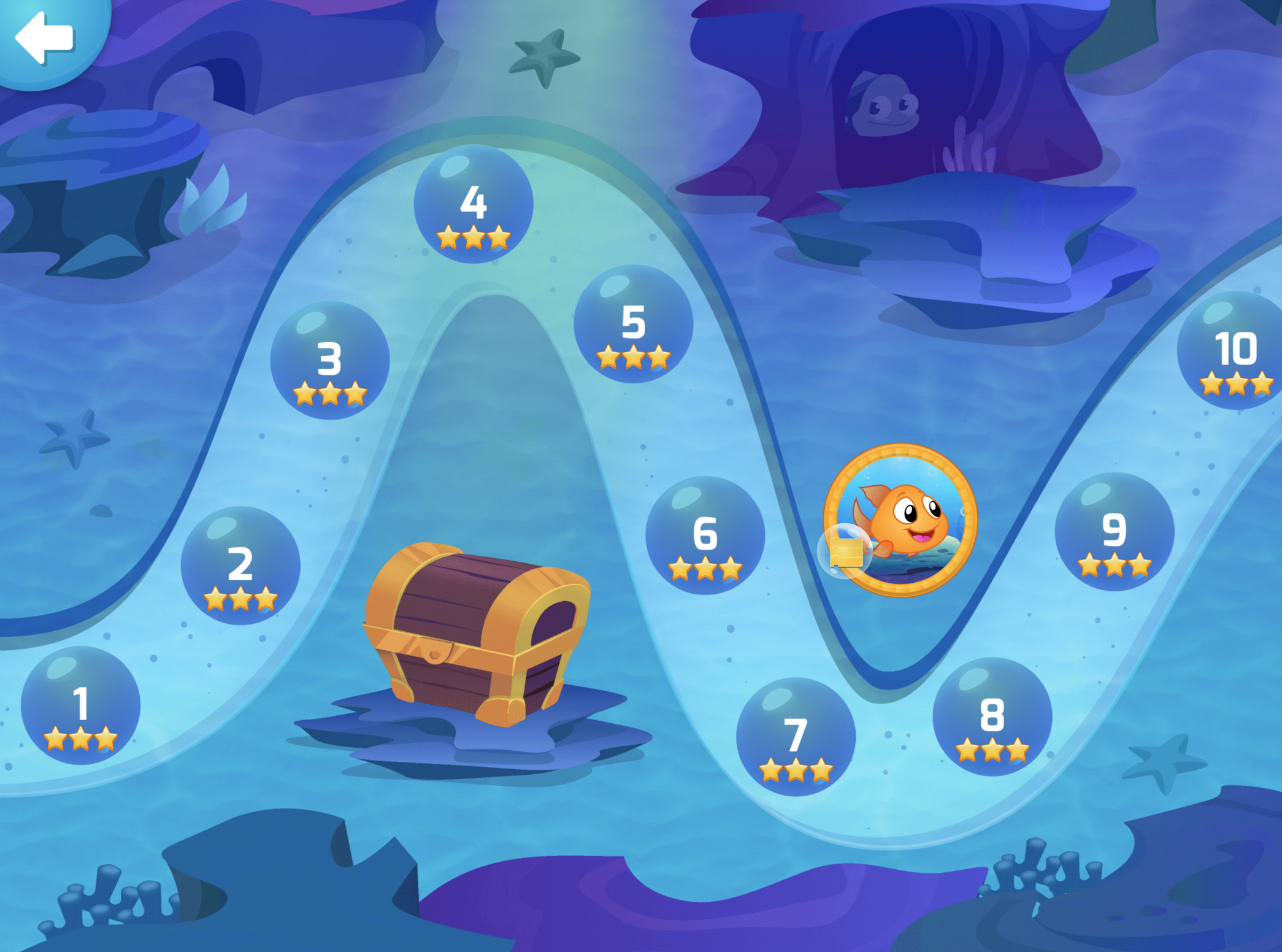
How to use it in class
Have a teacher sign into the all-access account(s) provided to you by Tynker on each iPad.
Tell students which adventure and lesson to open - for example, “Open Ocean Odyssey, then tap Lesson 3.”
Students tap the lesson and begin right away. There is nothing to unlock or assign first.
Students can replay any lesson as many times as they like.
Good to know
It is a shared account. Everyone uses the same login, so the account is not tied to one child. We do not recommend using this account outside of the Tynker Jr app
Progress is not tracked per student. Because every lesson is already marked complete and shared across devices, you will not see individual student progress or reports from this account.
Students cannot get stuck. Since nothing is locked, no one is blocked behind a lesson they have not finished yet.
Need to track progress or assign specific lessons? Use a regular class with individual student accounts instead. See How do you assign courses for students to use on iPad?
How to set up an all-access account
All-access accounts are set up for you. Email us at schools@tynker.com and let us know you would like an all-access shared account for your shared devices, along with the class or devices it is for.