
Step 1: Create your Teacher Account
Please reach out to your School Admin to have a Tynker teacher account created for you. If they haven’t already been in touch with one of our Account Managers for account setup, please have them contact us at schools@tynker.com.
Once your teacher account has been set up, you can access your Tynker teacher dashboard via the ClassLink Launchpad at https://launchpad.classlink.com/ or the ClassLink Launchpad App.
Once you access the Launchpad, please log in using the ClassLink credentials shared with you by the School:
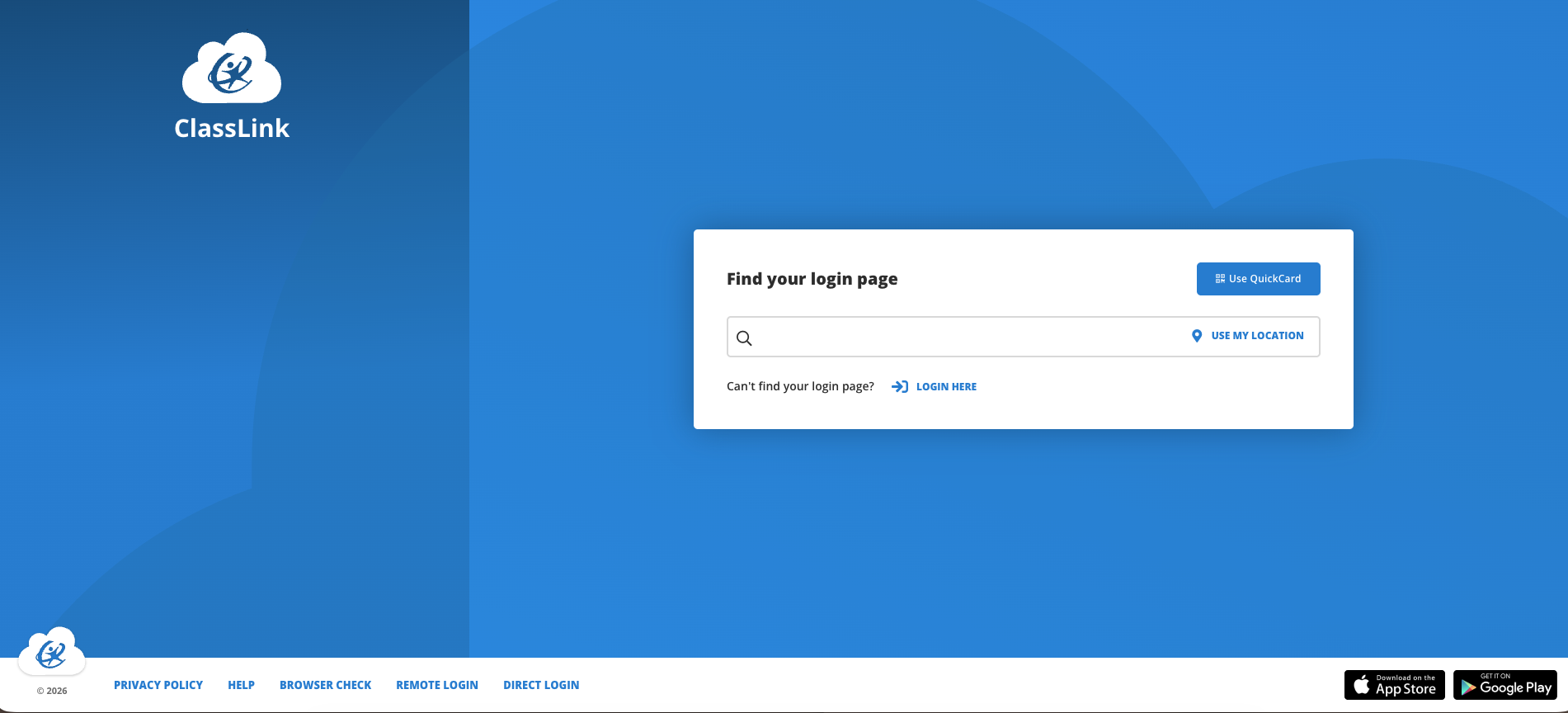
After you successfully log in, please select the Tynker app:
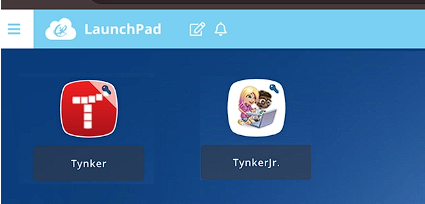
Once you select the Tynker app, you will be redirected to your Tynker Teacher Dashboard.
If you encounter any errors when logging in with your ClassLink credentials, see any errors on the Tynker page, or do not find your account, please reach out to our support team at schools@tynker.com or contact your school administrator to verify whether your account was created.
Note: If you require access to a Premium Tynker license, please reach out to your District Admin or contact us at schools@tynker.com.
Next Step:
Now that your teacher account has been created, continue to: