
Step 2: Create and Roster Your Classrooms for Clever Integration
📘Using Tynker with Clever (Free Accounts)
If your school uses Clever with a free account and Tynker Login has been enabled on your school’s Clever console, this option will let you roster students via a class code.
Click on Tynker Login within Clever to sign into Tynker.
Click “Create New Classroom” on the My Classrooms page.
Give your class a name and grade band, then click Continue.
Click the Clever logo, copy the class code, give the class code to students, and then click Finish and Go to Classroom.
Students would then go to tynker.com/classcode, enter the class code, click the Clever button, and sign in with their Clever credentials.
📘Using Tynker with Clever (Premium Accounts)
If your school uses Clever with a premium license and Tynker Premium has been enabled on your school’s Clever console, this option will let you link your Clever classrooms and sync rosters with one click.
1️⃣Sign in to Tynker from Clever using the Tynker Login Application, and click “Create New Classroom” on the My Classrooms page.
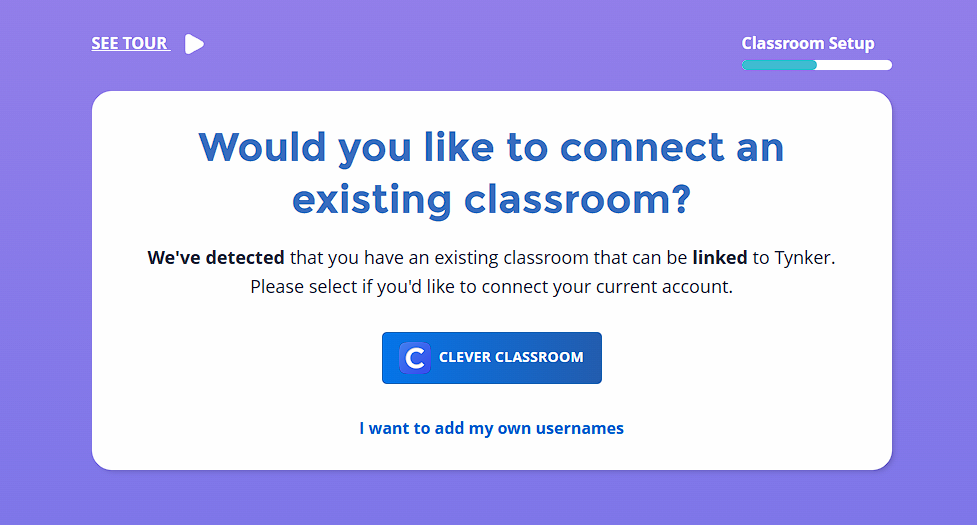
2️⃣Tynker will automatically detect if you have Clever. Simply select the Clever button.
3️⃣Choose which Clever roster you would like to add, choose the grade band, and click Link Classroom.
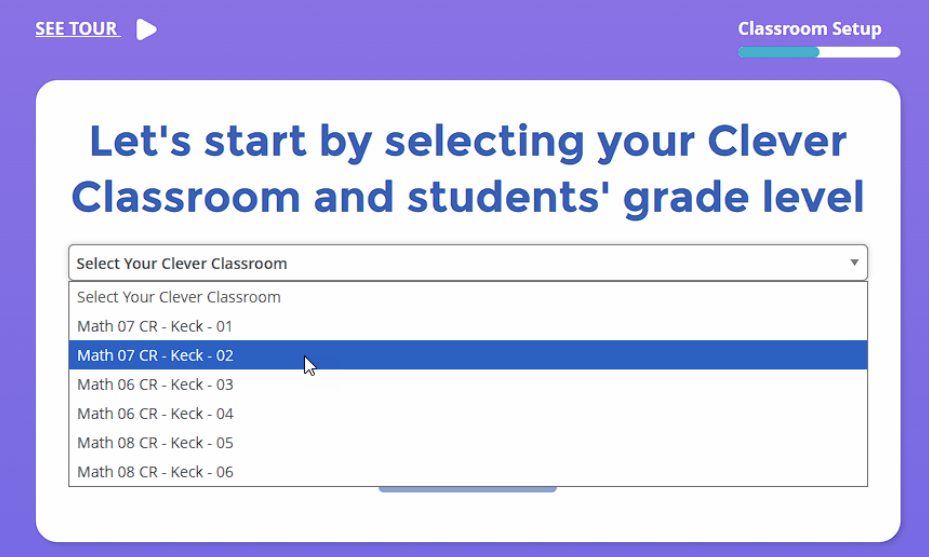
Your students will be automatically imported. Student additions and removals will automatically be made every 24 hours.