
Step 2: Create Your Classroom
Edited
Initial Setup on the Google Classroom side
Log in to Google Classroom: https://classroom.google.com/
Add/Create a classroom on the home page using the + button at the top right
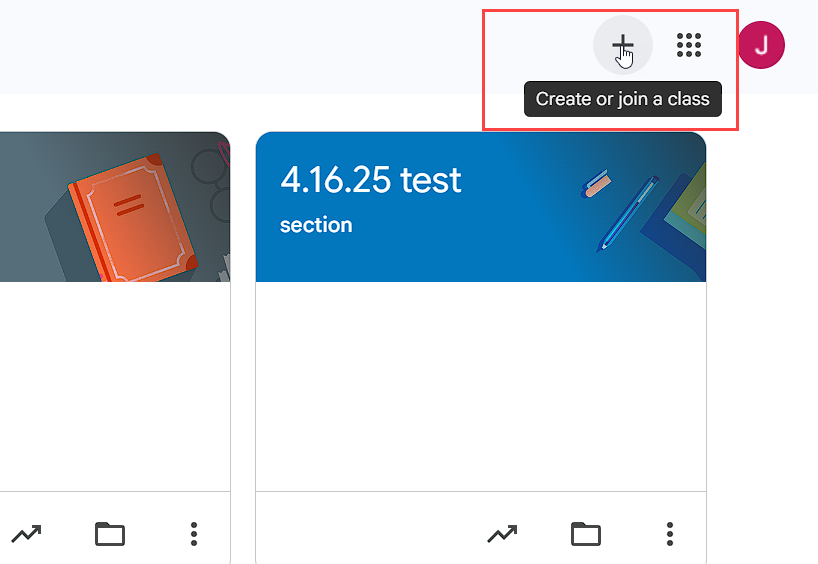
Within the classroom, go to the People tab and invite student(s):
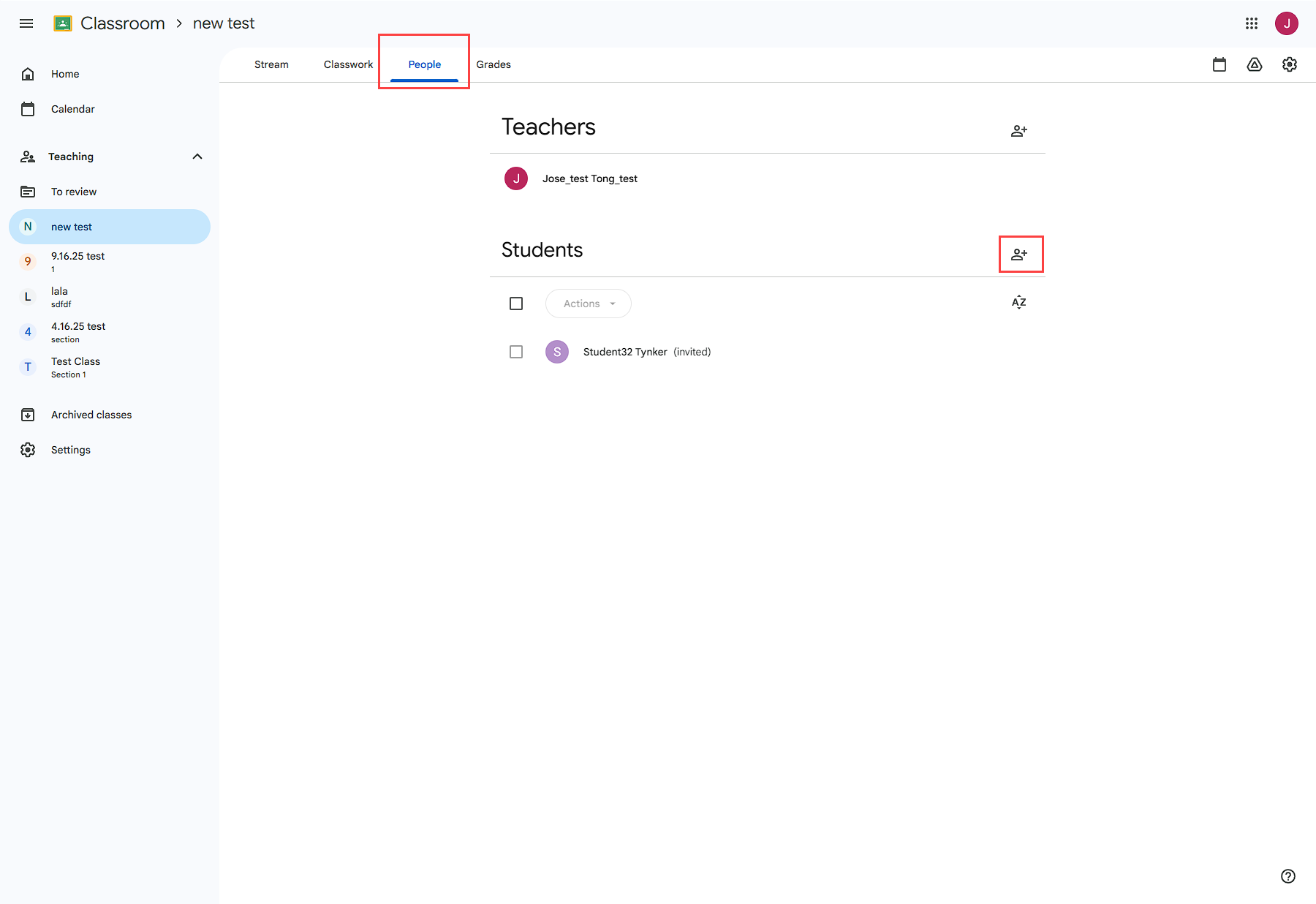
The student needs to accept the invite from within their GC. Once the student accepts, the teacher can confirm this by checking that “(invited)” no longer appears next to the student’s name.
Set up on the Tynker teacher dashboard side
Log in to the teacher’s Tynker dashboard
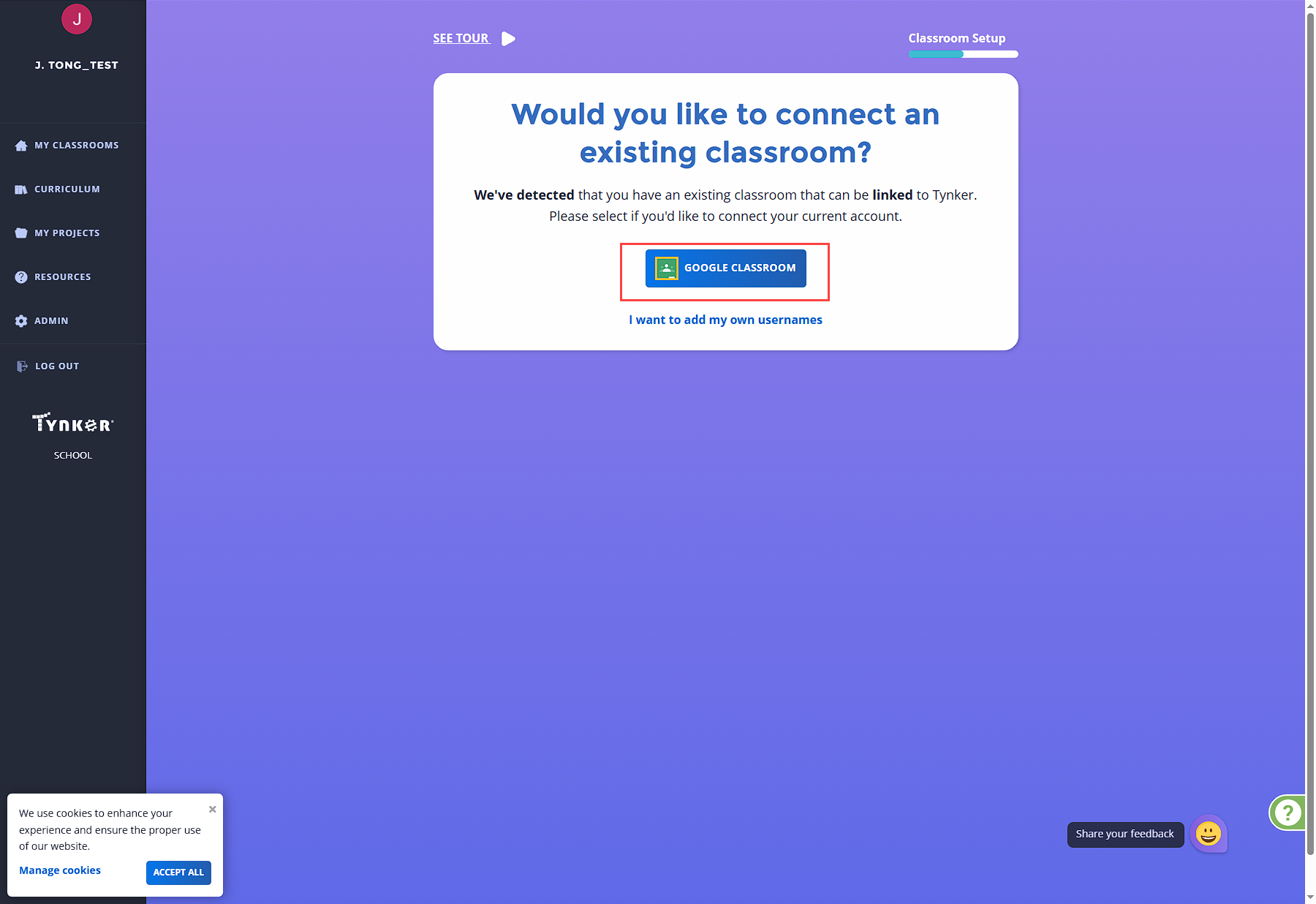
Click Add Classroom / Set up new classroom, click Google Classroom, then select the class section that was created in the GC section above.
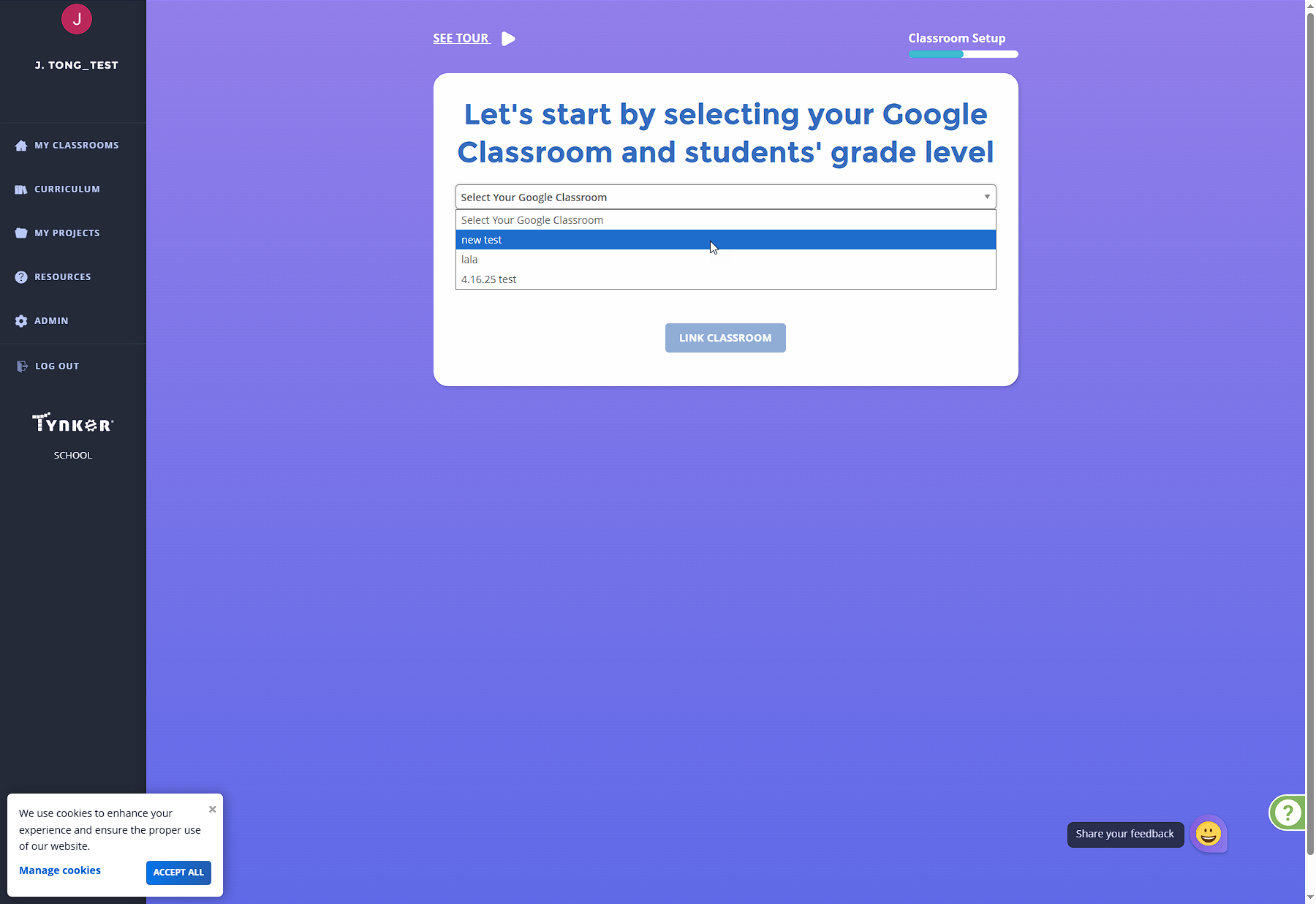
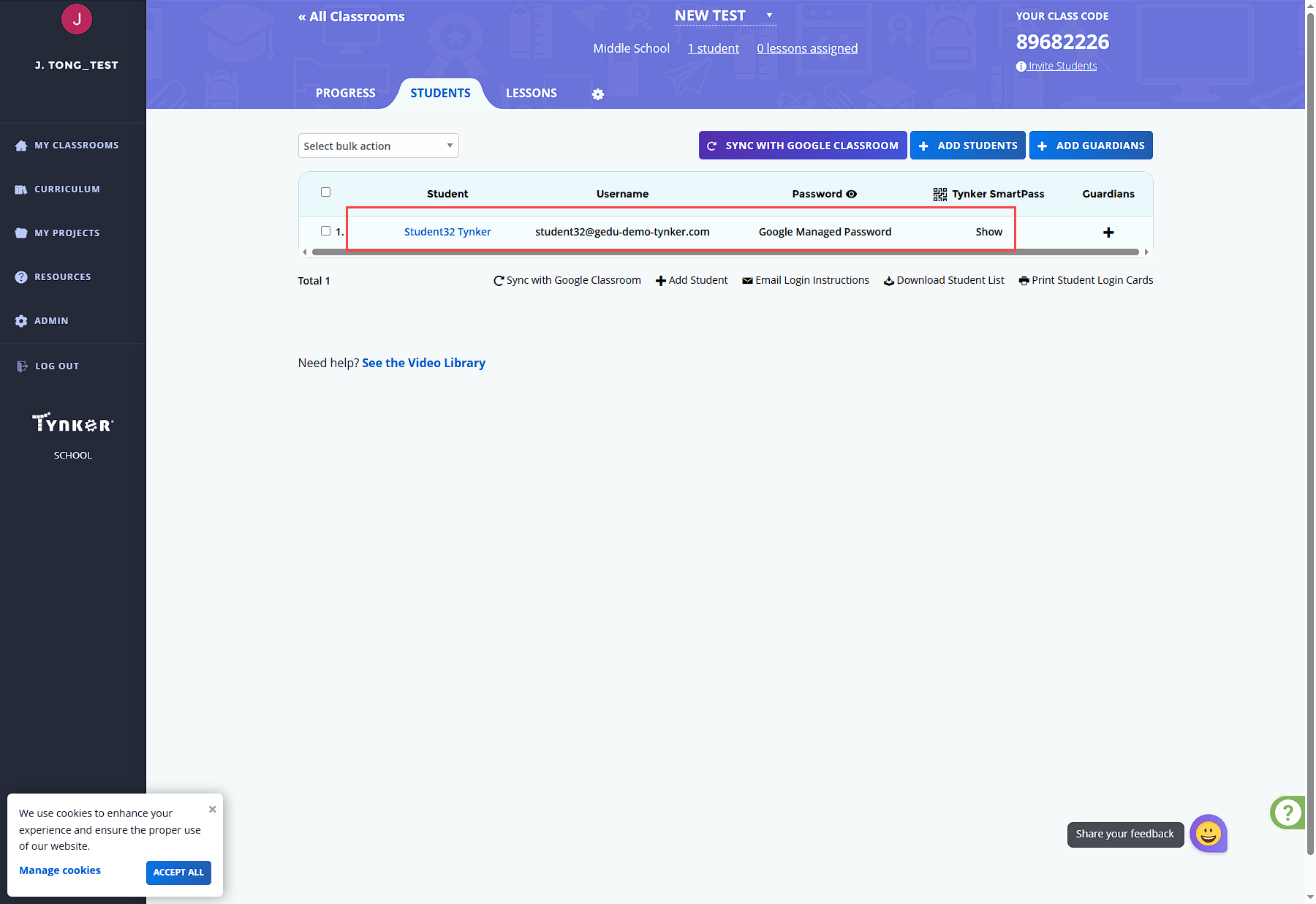
Verify the student roster matches Google Classroom
Next Step:
Now that your classroom has been created, continue to: