
Step 1: Create your Teacher Account
If you intend to use an integration setup for your school, please select one of the 3 options for more specific account creation instructions:
Otherwise, please see below for how to create a standard Tynker account.
Note: If your school administrator has already created an account for you, you may skip to the end of this article and proceed to the next step: creating your Classroom.
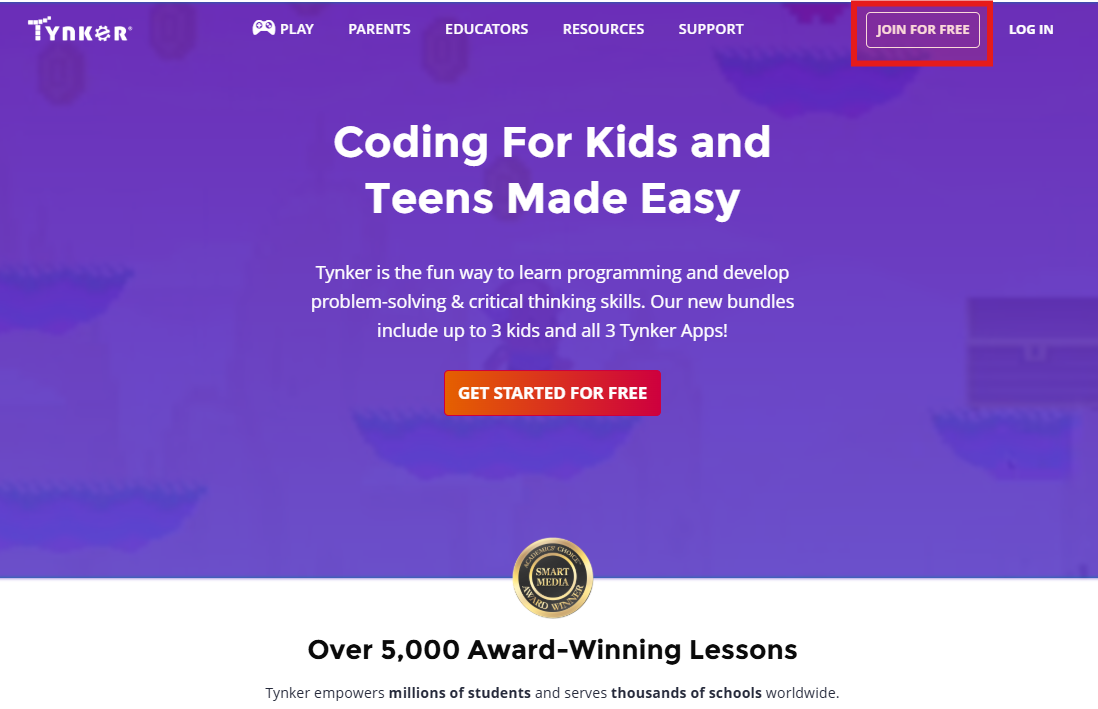
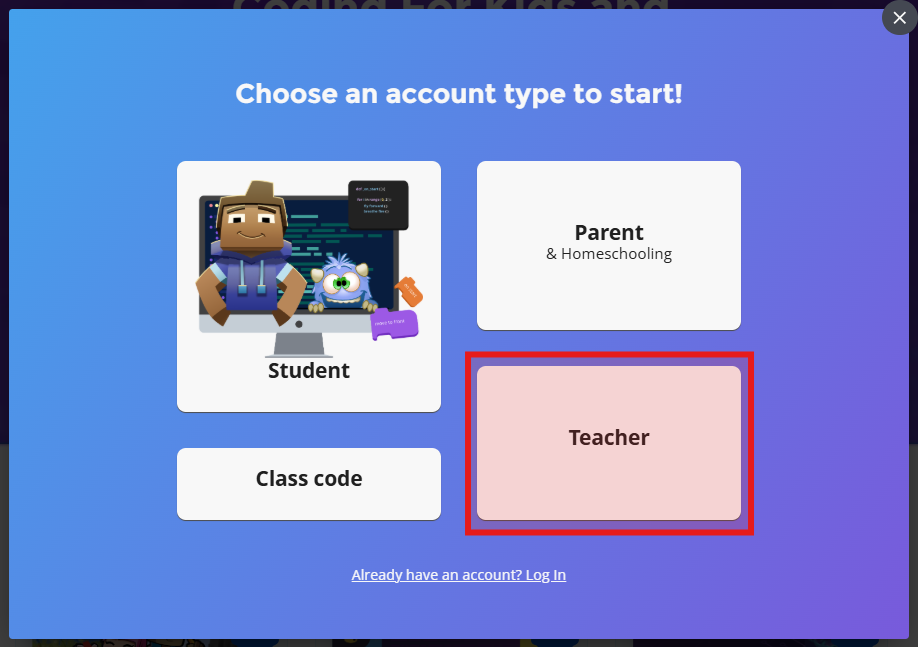
1️⃣ Go to www.tynker.com and click the Join for Free button and select "Teacher".
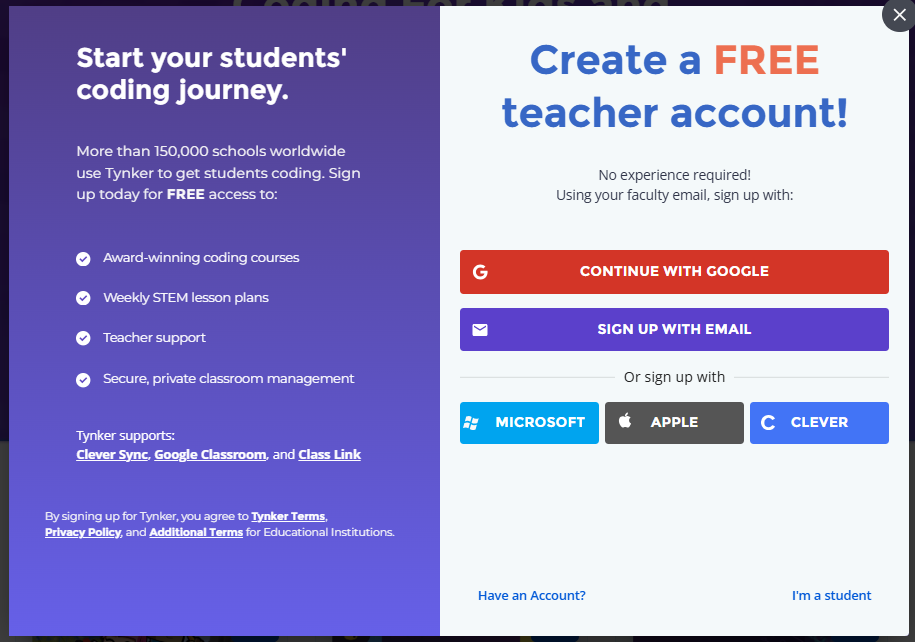
2️⃣ Create a new Teacher account, or sign in to Tynker using a Google, Microsoft, or Apple account. You’ll use this method every time you log in.
Tynker Username: Please click on the "Sign up with email" button, then provide an email address and a password, then your full name. Tynker will send you a verification email
You must verify your account before continuing.Google, Microsoft, or Apple Account: Use your Google, Microsoft, or Apple account to sign in. You don’t need a Tynker password to log in using this method.
If you require access to a Premium Tynker license, please reach out to your District Admin or contact us at schools@tynker.com.
Next Step:
Now that your teacher account has been created, continue to: