
Managing Games Access for Your School
Tynker allows school administrators to manage Community and Games Access settings for their school. These settings also determine whether teachers can control Games Access for their individual classrooms.
How Games Access Works
Games Access can be controlled at different levels:
District → School → Classroom
Higher-level administrator settings take priority over classroom settings. If Games Access is restricted by an administrator, teachers cannot override that restriction.
Manage Games Access
School administrators can view and manage these settings from:
Admin → Privacy
The Privacy settings clearly show the current Community setting and the available Games Access options, including how each option affects teacher control.
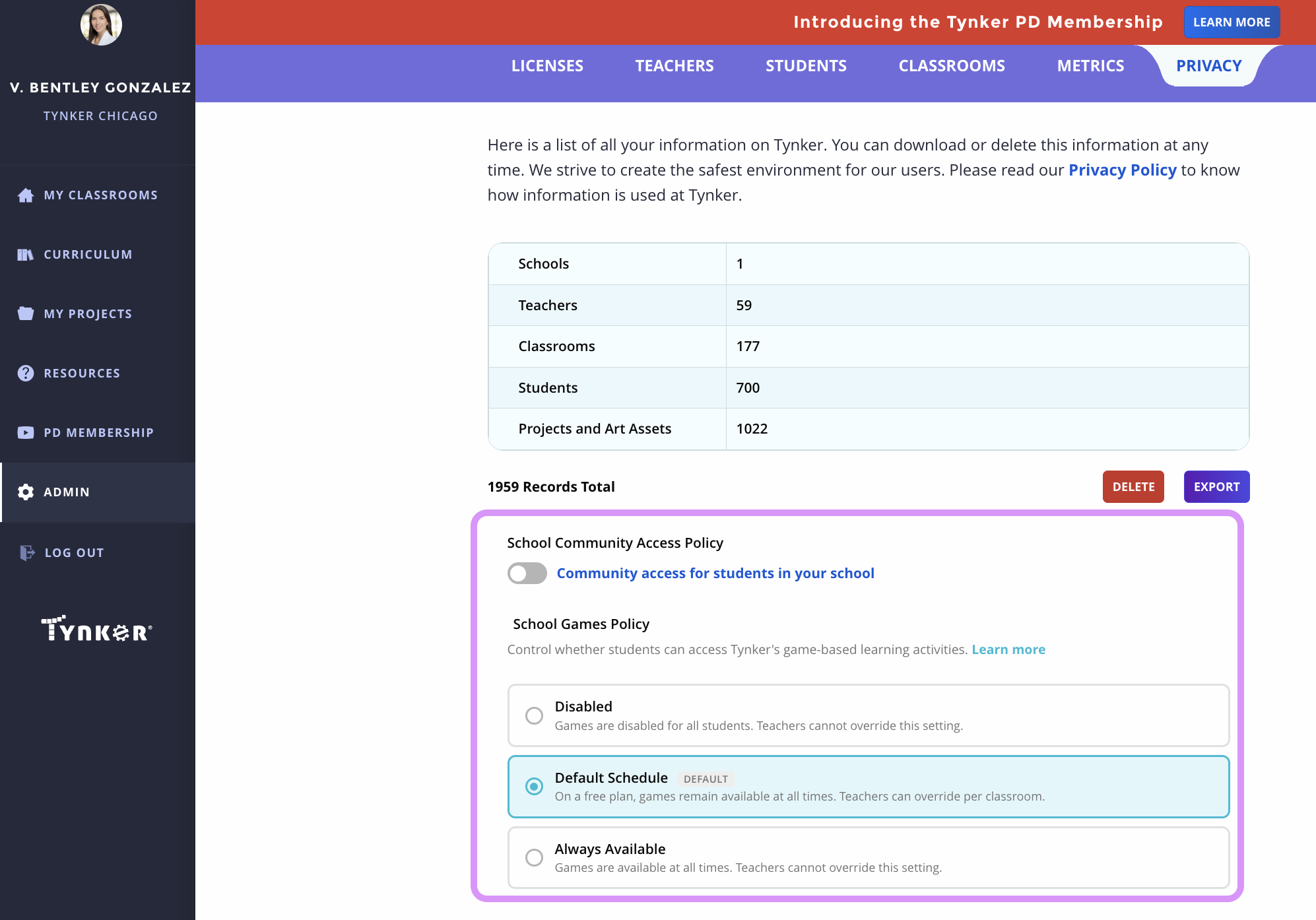
When teachers have control
If the selected setting allows teachers to manage Games Access:
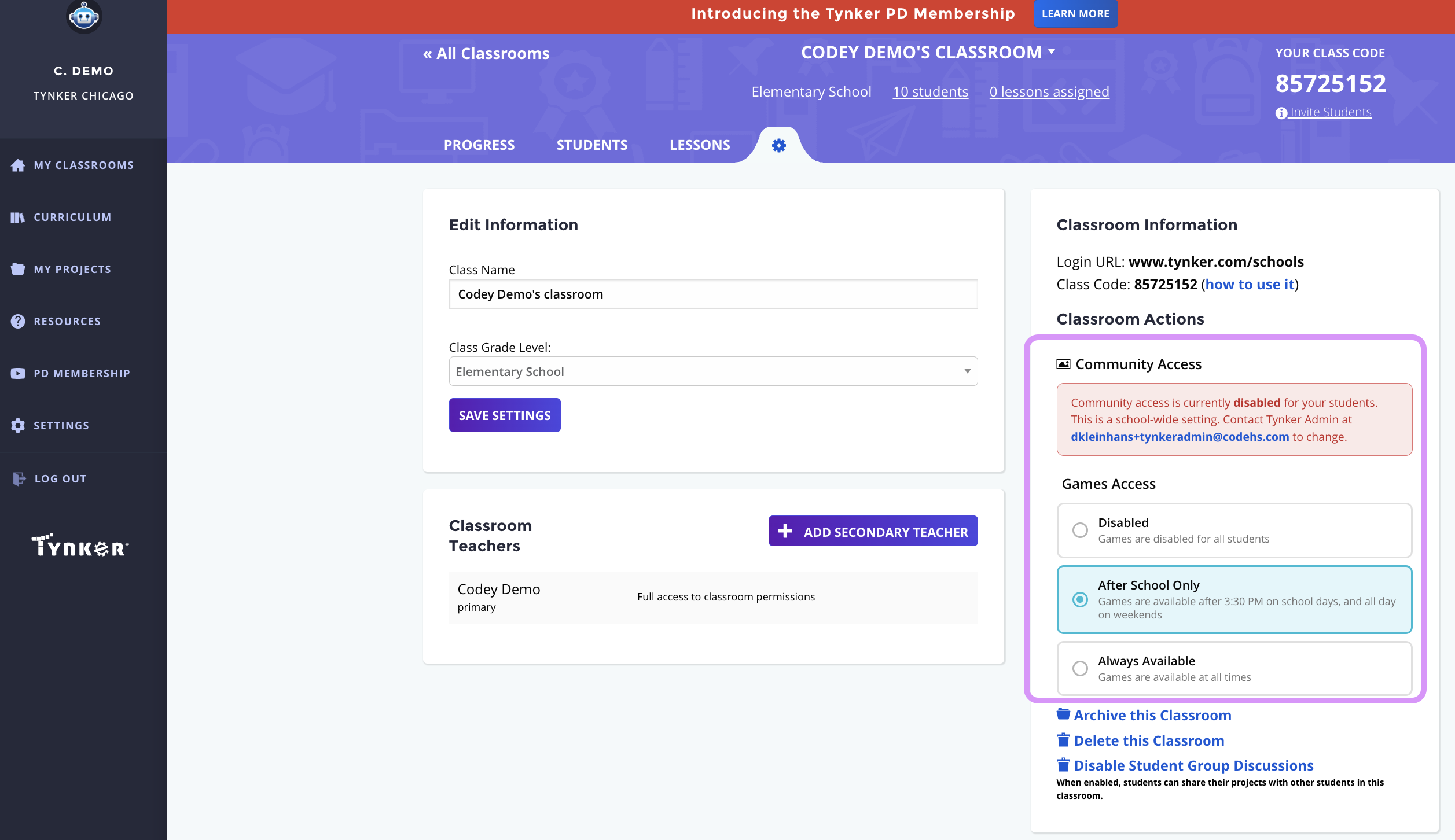
Teachers can view the available Games Access options in their classroom settings.
Teachers can select the setting they want to apply to their classroom.
Teachers can manage Games Access for their individual classrooms.
When Games Access is restricted
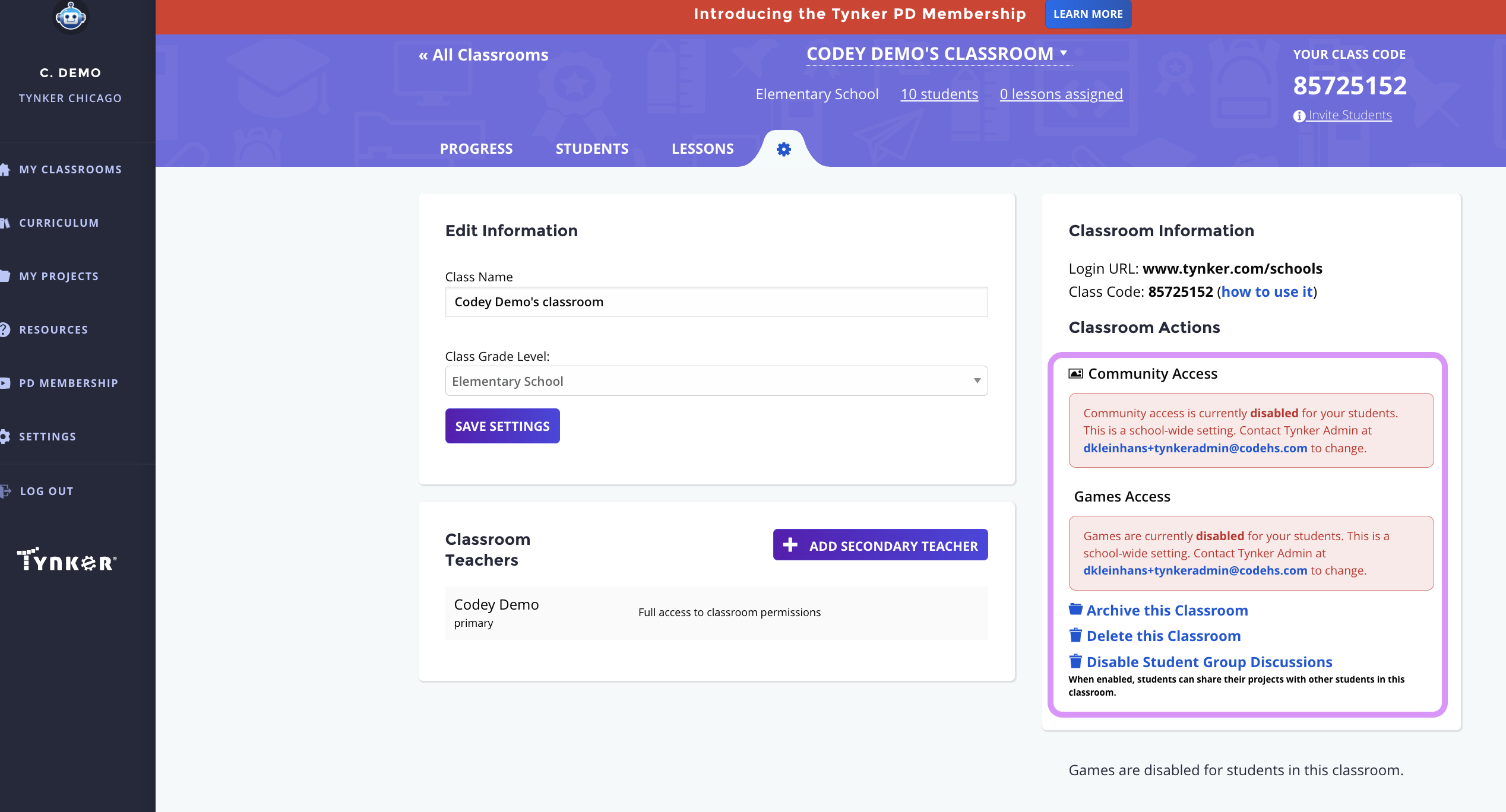
If Games Access is restricted by the school or district:
The administrator-controlled setting is displayed in the classroom settings.
Teachers can see that Games Access is controlled by an administrator.
Teachers cannot override the administrator's restriction.
What Teachers See
The updated classroom settings make it clearer whether Games Access is controlled by the teacher or by an administrator.
When teachers have control, they can see and select from the available options.
When an administrator has restricted Games Access, the classroom displays the administrator's setting instead.
Students in Multiple Classrooms
If a student is enrolled in multiple classrooms with different Games Access settings, a restriction in one classroom may affect the student's overall access to Games.
For example:
Classroom A → Games allowed
Classroom B → Games disabled
The restriction in Classroom B will prevent the student from accessing Games.
Frequently Asked Questions
Where can I manage Games Access?
Go to Admin Dashboard → Admin Settings → Privacy to view the available Games Access settings.
Can teachers override a school-level restriction?
No. Administrator restrictions take priority over classroom-level settings.
How do I know whether teachers can manage Games Access?
The Games Access options in Admin > Privacy indicate how the setting affects teacher control.
What happens when I restrict Games Access?
The restriction is reflected automatically in classroom settings. Teachers will see the administrator-controlled setting and will not be able to override it.